
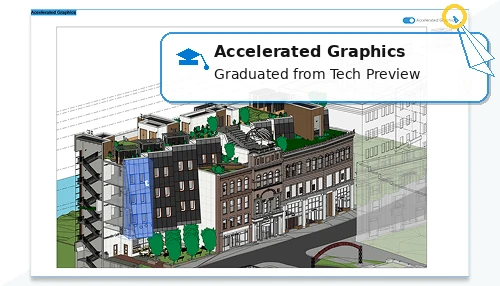
Revit 2027 is not just a documentation-and-modeling update. Autodesk is continuing a multi-release rebuild of the graphics pipeline, and the most important change for daily BIM work is that Accelerated Graphics is now a supported production capability rather than a Tech Preview. For architects working with large views, linked models, coordination context and presentation-heavy BIM, that makes the 2027 graphics stack worth testing deliberately rather than enabling blindly across an office.
1. What changed in the Revit 2027 graphics stack?
Accelerated Graphics graduated from Tech Preview in the base Revit 2027 release. Autodesk describes it as a modern graphics path intended to improve 2D and 3D view performance, visual quality and hardware utilization. Revit 2027.2 then added improved Ambient Shadows in Accelerated Views and an optional Vulkan-based graphics engine. Revit 2027.3 expanded accelerated-view coverage again, including coordination-model display and Forma workflows.

2. How to enable Accelerated Graphics
On a test workstation, open File → Options → Graphics and enable Accelerated Revit Graphics. Test the same project and the same saved views before and after the change. Do not judge the feature from an empty template: the useful test is a project that represents your normal linked models, detail density, shadows and view filters.
For a first office test, choose three view types: one large 3D coordination view, one documentation-heavy plan or section, and one presentation view with shadows. Orbit, zoom, pan, select, isolate and switch views repeatedly. The goal is not to chase one benchmark number; it is to check whether navigation feels consistently faster without graphics regressions.

3. Vulkan is optional—and it is not a simple UI checkbox
Revit 2027.2 added an optional Vulkan path for Accelerated Graphics. Autodesk documents the Revit.ini key EnableAcceleratedRevitGraphicsVulkan: a value of 1 enables Vulkan, while 0 is the default. Autodesk also notes that there is no UI notification for this setting, so advanced users should verify the mode in a journal file after testing.

4. Hardware: what matters for Accelerated Views?
Autodesk’s Revit 2027 system guidance continues to favor a fast CPU, sufficient system memory and a dedicated graphics card. For optimal Accelerated Graphics use, Autodesk guidance points to a workstation with substantial RAM and a GPU with enough VRAM; large BIM projects also benefit from keeping generous headroom for linked files and other design applications.
LumionVietnam recommendation: for a new architecture workstation that will regularly use Accelerated Views, target at least 32 GB RAM and 8 GB VRAM; move to 64 GB RAM when large Revit models, multiple links, point clouds, browser tabs and rendering tools run together. This is editorial guidance, not an Autodesk minimum.
5. What should architects test in Revit 2027.3?
Revit 2027.3 is especially relevant if your workflow relies on coordination models or Forma. Autodesk’s September update extends what can display in Accelerated Views, reducing the need to fall back to the legacy graphics path for some mixed-context workflows. Test selection, transparency, view filters, imported context and navigation—not only raw frame rate.

6. Common problems and what to check first
A view looks different after enabling Accelerated Graphics
Compare the same view in the default graphics mode and confirm which visual feature is responsible. Autodesk continues to expand feature parity across releases, so unsupported or changed behavior should be isolated before company-wide rollout.
Vulkan does not appear to be active
Confirm the Revit.ini setting, restart Revit, then inspect a journal file for the documented Vulkan hardware mode. Do not assume the setting is active just because the line exists in a configuration file.
Navigation is faster but the workstation becomes unstable
Update the certified or vendor-recommended graphics driver, retest without Vulkan, and check GPU/VRAM pressure. A graphics feature that improves one project but destabilizes another is not yet ready for office-wide deployment.
Video walkthrough
FAQ
Is Accelerated Graphics still a Tech Preview in Revit 2027?
No. Autodesk states that Accelerated Graphics graduated from Tech Preview in Revit 2027.
Is Vulkan enabled by default?
No. Autodesk documents the Vulkan engine as an optional Revit.ini setting and lists 0 as the default value.
Should every architect enable Vulkan immediately?
No. Treat it as an A/B test on supported hardware. Start with the default Accelerated Graphics path, verify project behavior, then test Vulkan separately.
Official sources
- Autodesk — Revit 2027 Product Updates
- Autodesk — What’s New in Revit 2027
- Autodesk — Graphics Settings in Revit.ini
- Autodesk — System Requirements for Revit 2027 products
Featured image: official Autodesk Revit 2027 Accelerated Graphics image, stored locally in the LumionVietnam Media Library and used for editorial coverage with attribution.
Continue Exploring