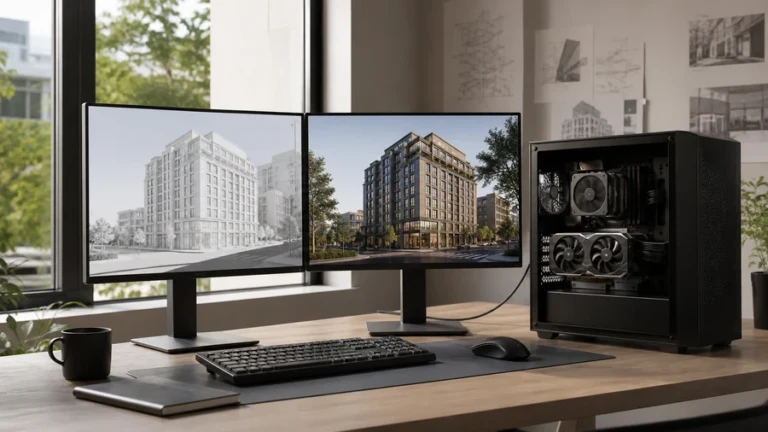

Blender 5.2 LTS can launch on modest hardware, but architectural visualization workloads quickly move beyond the official minimum. A viewport-only modeling machine, an EEVEE presentation workstation and a Cycles GPU-rendering system have very different bottlenecks. This guide starts with Blender Foundation’s official requirements, then adds workload-based recommendations for architects and 3D artists.
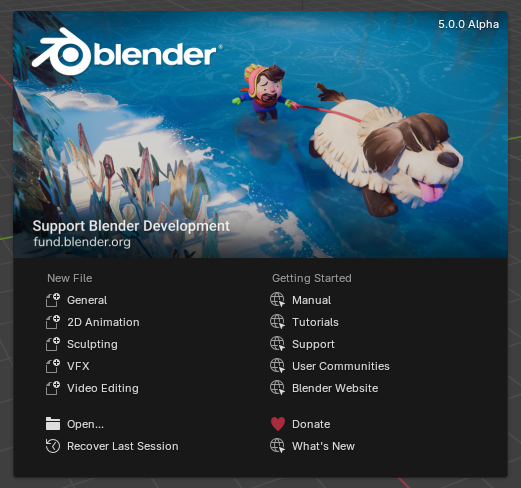
1. Official Blender system requirements
| Component | Minimum | Recommended |
|---|---|---|
| CPU | 4 cores, SSE4.2 | 8 cores |
| RAM | 8 GB | 32 GB |
| GPU memory | 2 GB VRAM | 8 GB VRAM |
| Graphics API | OpenGL 4.3 + Vulkan 1.3 | Current supported GPU/driver |
Those figures describe a supported baseline, not a guarantee for heavy architectural scenes. Blender’s own requirements page separately points Cycles users to the GPU-rendering documentation because CUDA, OptiX, HIP and other compute backends have their own compatibility rules.

2. GPU and VRAM: the first decision for Cycles users
For EEVEE and general viewport work, a supported modern GPU with enough memory is usually more important than chasing the fastest possible compute card. For Cycles, GPU compute compatibility becomes critical. Blender 5.2’s manual documents NVIDIA CUDA/OptiX and AMD HIP requirements separately, and users should verify the exact GPU generation and current driver before buying.
VRAM controls how comfortably textures, geometry, BVH data and render buffers fit on the GPU. When a scene exceeds practical GPU memory, performance can fall sharply or the workflow may require compromises such as lower texture resolution, proxy assets or CPU rendering.
3. CPU: modeling responsiveness versus rendering
Blender recommends an 8-core CPU, but “more cores” and “faster interaction” are not identical. Modeling, modifiers, dependency-graph updates and many UI operations still benefit from strong per-core performance, while CPU rendering and some simulations can scale across more cores.
LumionVietnam recommendation: choose a modern 8–16 core desktop CPU for a balanced architecture workstation, then spend the remaining budget where your bottleneck actually lives. If Cycles GPU rendering is your main output path, an unnecessarily expensive CPU can take budget away from GPU memory.
4. RAM: 32 GB is a practical professional starting point
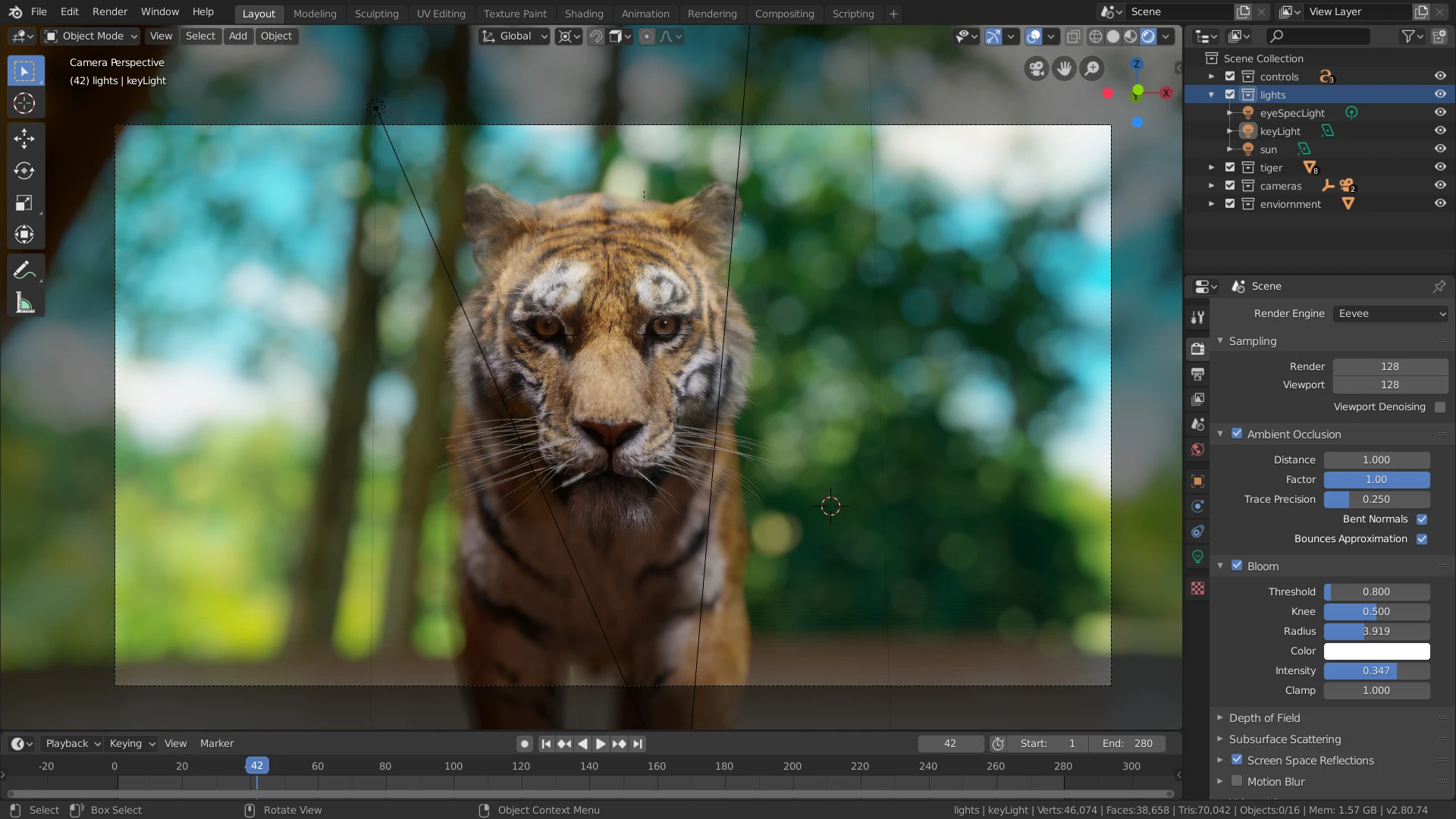
Blender officially recommends 32 GB RAM. That is also a sensible starting point for professional architectural visualization because Blender often shares memory with CAD/BIM software, image editors, browsers, texture tools and reference applications. For large imported scenes, point clouds, high-resolution textures or simulation-heavy work, 64 GB provides safer headroom.
5. Windows, macOS and Linux considerations
Blender’s current Windows minimum is Windows 8.1 64-bit, while Windows 11 is recommended. On macOS, Blender 5.x requires Apple Silicon and macOS 13 or newer; Blender 4.5 LTS was the last release supporting Intel Macs. Linux users need a modern 64-bit distribution with a supported glibc baseline and a compatible GPU driver stack.
6. Desktop versus laptop
A laptop can be an excellent Blender workstation, but two GPUs with similar names can perform differently because of power and cooling limits. Check sustained GPU power, VRAM capacity, cooling behavior and RAM upgradeability. For long Cycles sessions, desktop systems are easier to cool and upgrade, while laptops trade some sustained performance for mobility.

Video reference
7. Three practical configurations
Entry architecture workstation
Modern 6–8 core CPU, 32 GB RAM, 8 GB VRAM GPU, NVMe SSD. Best for modeling, EEVEE, smaller interiors and moderate Cycles jobs.
Recommended archviz workstation
Modern 8–16 core CPU, 32–64 GB RAM, 12–16 GB VRAM GPU, 1–2 TB NVMe SSD. Balanced for larger scenes, vegetation, 4K textures and frequent GPU rendering.
Heavy Cycles / large-scene workstation
Fast modern CPU, 64 GB+ RAM, 16–24 GB+ VRAM GPU and generous NVMe storage. Choose this tier when heavy assets, large batches or high-resolution textures are normal rather than occasional.
FAQ
Is 8 GB VRAM enough for Blender 5.2?
It meets Blender’s current recommended GPU-memory figure. Whether it is enough for your work depends on scene size, textures and render engine. Heavy architectural Cycles work can benefit from significantly more.
Does Blender 5.2 require an RTX GPU?
No. Blender supports multiple vendors and compute backends. RTX hardware can enable OptiX acceleration, but it is not a universal Blender requirement.
How much RAM should an architect buy?
32 GB is a strong professional starting point. Choose 64 GB or more when large imported projects, simulations or several design applications are used together.
Official sources
- Blender Foundation — System Requirements
- Blender Manual 5.2 — GPU Rendering
- Blender Manual 5.2 — System Preferences
- Blender Foundation — Blender 5.2 LTS
Featured image: official Blender 5.2 documentation visual stored locally in WordPress; separate from the four body visuals above.
Continue Exploring