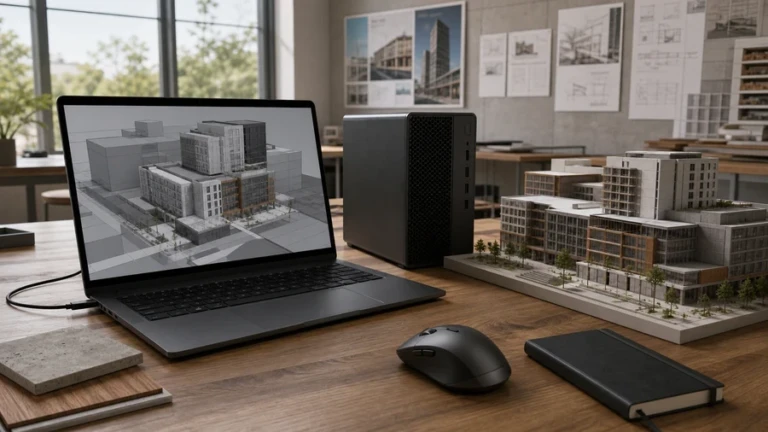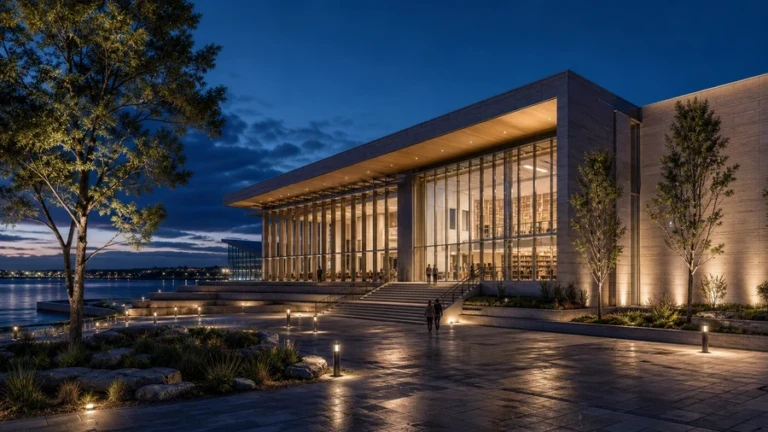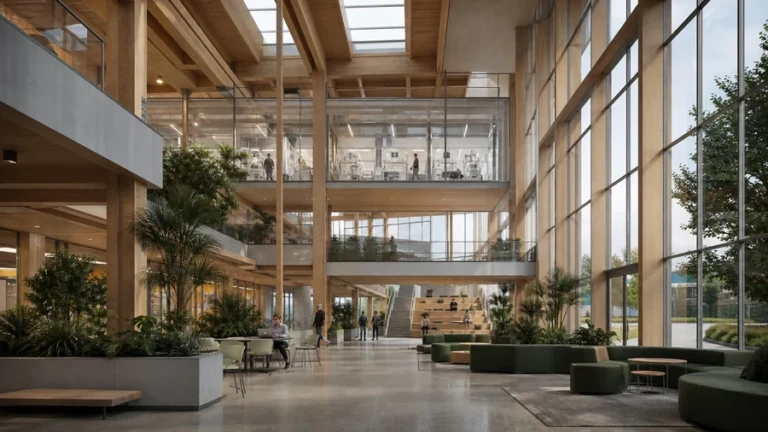
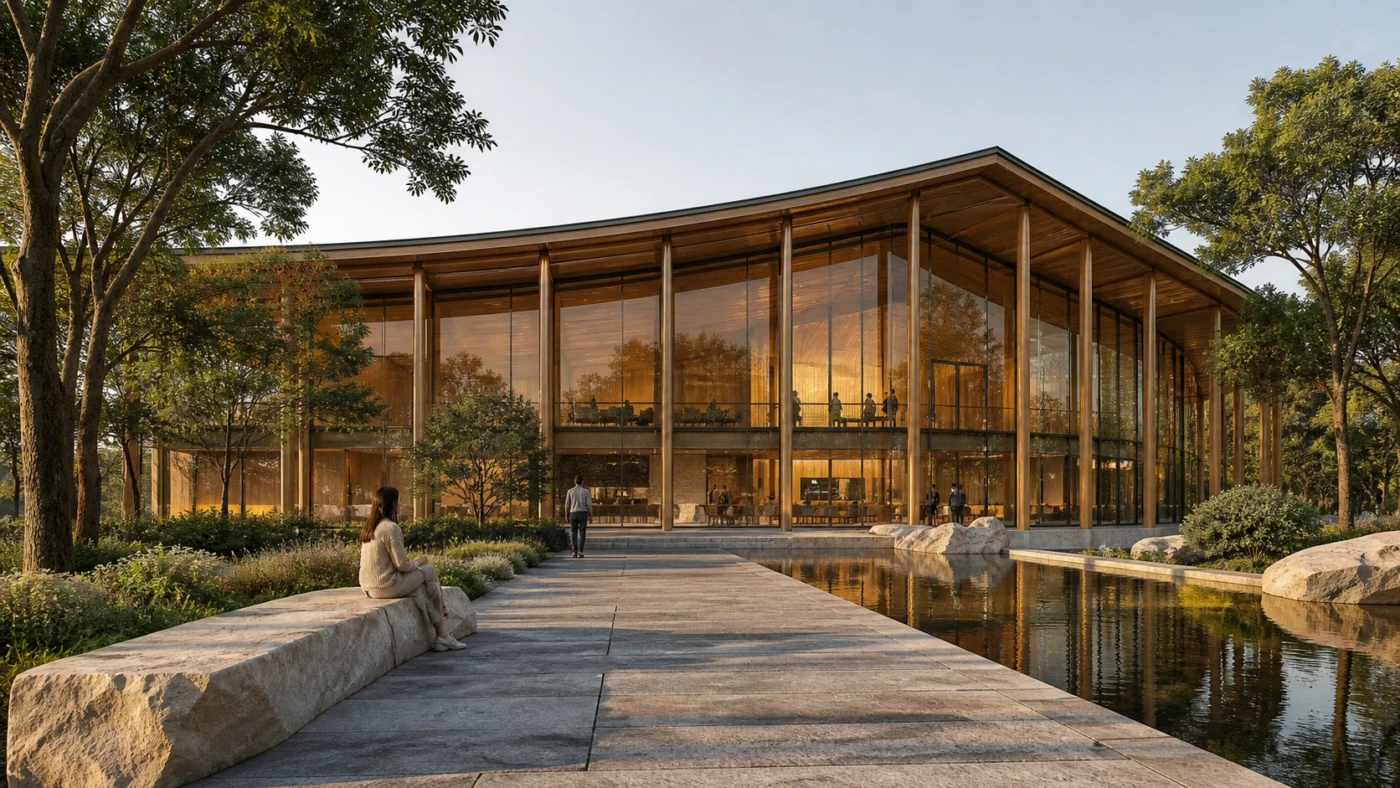
The most useful AI workflow in Enscape is not one tool doing everything. Veras is strongest when exploring design directions; Chaos AI Enhancer is strongest when refining selected parts of an approved render. Combining them in the right order gives architects speed without surrendering the model.

Why the Enscape AI workflow is attracting attention
Chaos has expanded AI across its architectural visualization ecosystem. Veras is available across Enscape plans and its newer engine is designed to preserve architectural fidelity while generating alternatives. AI-assisted material generation is available through Cosmos in the Enscape Material Editor. Envision adds a path from real-time design visualization toward more developed presentation and animation. The Chaos AI Enhancer is integrated across Enscape, V-Ray, and Corona.
These tools solve different problems. Confusing them leads to predictable mistakes: using concept generation as final documentation, or using enhancement to hide a weak base render.
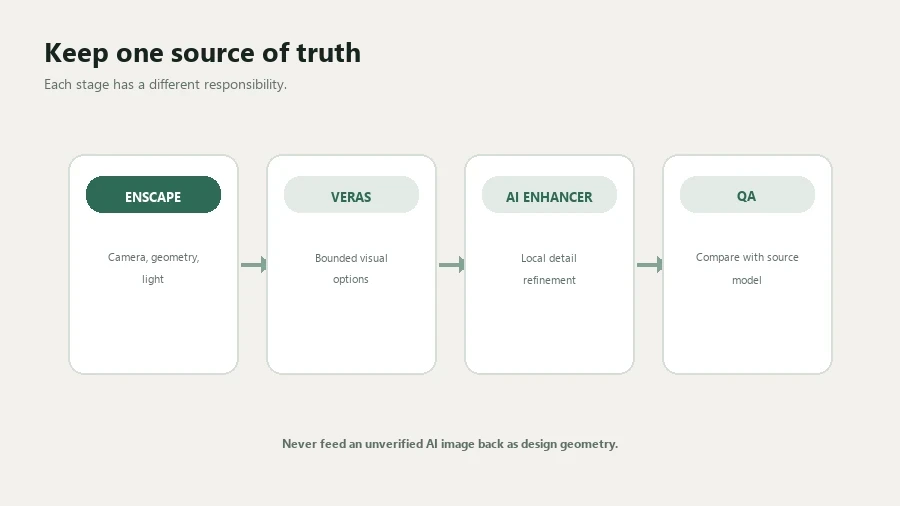
Understand the two AI roles
Use Veras to explore
- Material and facade directions
- Atmosphere and season
- Interior styling alternatives
- Landscape character
- Early client conversation
Use AI Enhancer to refine
- People and vegetation
- Large material surfaces
- Selected realism issues
- Final-image polish
- Cloud processing while work continues
Veras can reinterpret the image. AI Enhancer is designed to improve targeted visual categories while leaving the broader render intact. Neither changes the BIM model. Any accepted design idea must be translated back into the source geometry and materials.
A controlled concept-to-final workflow
1. Create a truthful Enscape baseline
Start with correct geometry, a saved camera, neutral exposure, and materials that clearly separate glass, metal, timber, stone, and planting. Do not hide unresolved design decisions behind dramatic fog or a heavy color grade.
Export and archive this baseline. It is the fastest way to recognize when a generated option has altered the building rather than merely exploring its appearance.
2. Define what AI is allowed to change
Write a short scope before opening Veras. A useful brief contains three lists: elements to preserve, elements to explore, and unacceptable changes.
Preserve: camera, massing, columns, glazing rhythm, entrances
Explore: warmer timber, denser tropical planting, soft morning light
Reject: new floors, moved windows, changed roof profile, fantasy materials
This is more effective than a long prompt filled with aesthetic adjectives because it connects the output to an architectural decision.
3. Generate one variable at a time
First compare two lighting directions. Then compare material palettes. Then landscape density. If every variable changes in every image, the team cannot explain why one option is better.
Keep the same camera and archive outputs with descriptive names such as courtyard-morning-warm-timber-v02. Good file naming is still part of an AI workflow.
4. Bring approved ideas back into the model
If the client prefers a darker facade, specify an actual material. If a planting direction is approved, place suitable assets at credible spacing and mature size. If the image suggests a new canopy or opening, treat that as a design proposal requiring normal coordination—not as a completed change.
5. Produce the final Enscape render
After resolving the model, tune sun position, artificial lighting, exposure, depth of field, and output resolution. Check repeated assets, texture scale, glass reflections, and people near important edges. The final render should already be presentable before enhancement.
6. Apply Chaos AI Enhancer selectively
AI Enhancer can improve Chaos assets such as people and vegetation and refine large surfaces. Run a moderate first pass. Compare faces, hands, plant silhouettes, signage, facade joints, and reflections at 100% zoom. The enhancement is successful only when it improves realism without changing project information.
Stop rule: if a second enhancement pass begins to “fix” architecture, return to Enscape and correct the source scene.
Where AI-assisted materials fit
AI material generation through Cosmos can accelerate the jump from a description to an editable starting material. It does not remove the need to check real-world scale, roughness, bump strength, seams, and manufacturer constraints. For specified products, use verified manufacturer maps whenever they are available.
Generated materials are most appropriate during concept design or for generic surfaces. Label them clearly so a compelling visual does not become an accidental specification.
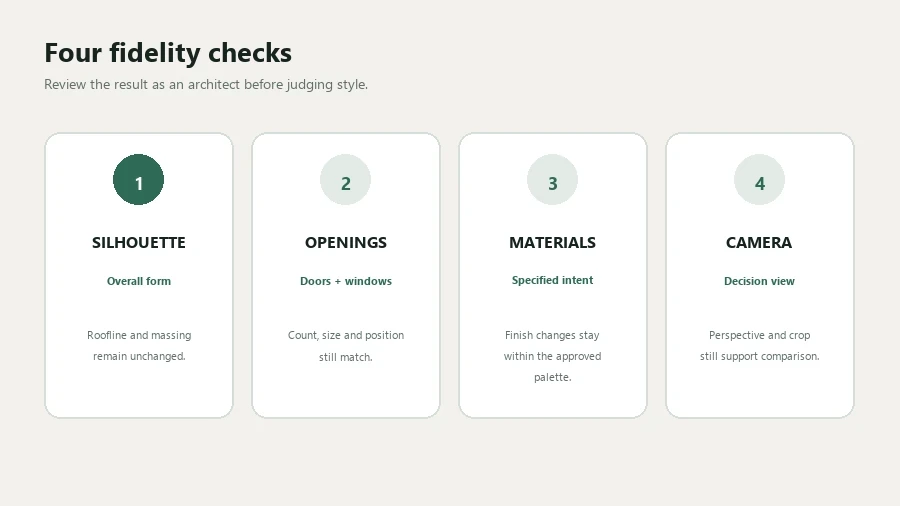
Quality-control checklist
- The baseline and final image use the same approved camera.
- Veras options are labelled as AI-assisted concepts.
- Approved ideas have been rebuilt or specified in the CAD/BIM model.
- No generated person blocks circulation or changes accessibility.
- Vegetation species and mature sizes suit the project climate and space.
- Enhanced surfaces retain joints, edges, signage, and construction logic.
- Client deliverables are checked at full resolution, not only in the viewport.
When to skip AI
Skip concept generation when the purpose of the image is technical validation, exact material approval, code review, daylight evidence, or coordination. Skip enhancement when people and vegetation are already convincing, when the deadline does not allow full-size review, or when a cloud-processed output conflicts with project confidentiality requirements.
Final recommendation
Use Veras at decision points, not on every view. Use AI Enhancer at the end, not as a permanent layer over unfinished work. The Enscape model remains the source of truth, while AI expands the number of visual questions a team can ask—and shortens the time needed to ask them.
Sources and further reading
Continue Exploring