Enscape can launch on a 4 GB graphics card, but that does not mean the same machine will stay responsive inside a detailed Revit model, export a 4K animation, or drive a VR headset. This guide separates Chaos’s official requirements from practical hardware recommendations for real architectural workloads.

Quick answer: what PC should you buy for Enscape?
For a new Windows workstation, our balanced starting point is a modern NVIDIA RTX or AMD Radeon GPU with 10–12 GB of dedicated VRAM, a recent high-clock CPU, 32 GB of system RAM, and a 1 TB or larger NVMe SSD. That configuration is appropriate for many houses, interiors, offices and medium-sized BIM projects.
Move to 16 GB or more VRAM and 64 GB RAM when you regularly handle federated Revit models, campuses, hospitals, dense vegetation, many high-resolution textures, 4K video or VR. Small projects can run on less, but buying exactly at the vendor minimum leaves little room for the host application, browser, asset library and future project growth.
Official Enscape requirements versus practical recommendations
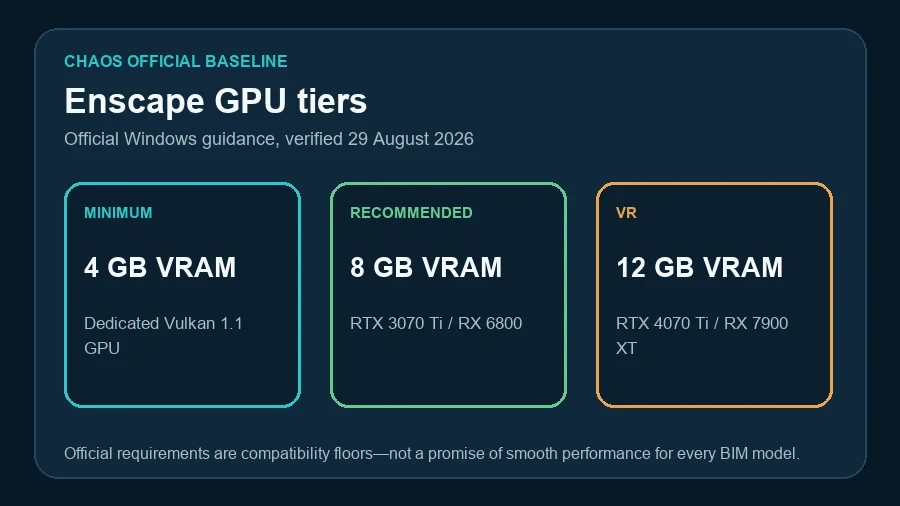
Chaos currently describes three Windows GPU levels. The minimum is a dedicated Intel Arc A310, NVIDIA or AMD GPU with 4 GB VRAM and Vulkan 1.1 support. The recommended level lists an NVIDIA GeForce RTX 3070 Ti or AMD Radeon RX 6800 with 8 GB VRAM. For VR, Chaos lists an RTX 4070 Ti or RX 7900 XT and 12 GB VRAM.
GPU and VRAM: the first buying decision
Enscape performs most rendering calculations on the GPU. It therefore needs dedicated graphics memory rather than relying on ordinary system RAM. VRAM stores geometry, textures, frame buffers, denoising data and other scene resources. When that pool is exhausted, performance can collapse, exports can fail, or the application can become unstable.
6–8 GB VRAM: small and controlled projects
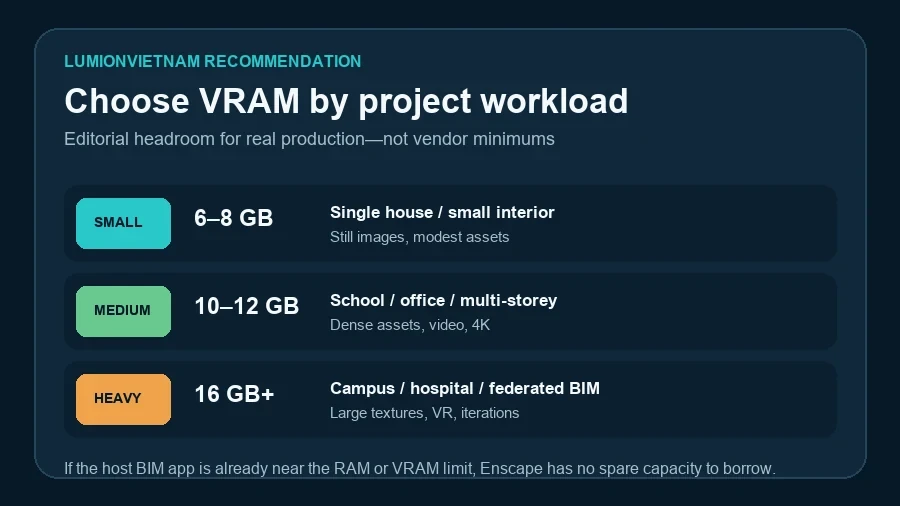
This range is suitable for a single residence, compact interior, early design model or occasional still-image workflow. Keep texture resolution disciplined, avoid excessive high-poly assets and test the real model before committing to a low-VRAM laptop. Although 4 GB meets the official minimum, we would not select a new 4 GB machine for professional work in 2026.
10–12 GB VRAM: the balanced professional tier
For many architects and visualization artists, this is the sensible middle ground. It provides more space for medium BIM projects, detailed planting, several linked models, 4K stills and short videos. It also aligns more closely with Chaos’s 12 GB VR guidance than an 8 GB card does.
16 GB or more: heavy BIM, VR and long project life
Choose this tier when the cost of interruptions is greater than the price difference between GPUs. Hospitals, airports, campuses and federated coordination models can combine many linked files, repeated families, textures and assets. Additional VRAM does not automatically make the renderer faster, but it raises the ceiling before memory becomes the limiting factor.
If you already see memory warnings in another renderer, use our GPU-memory troubleshooting workflow before assuming that a new graphics card is the only solution.
CPU: prioritize strong interactive performance
The GPU renders the Enscape window, but the CPU still matters. Revit, SketchUp, Rhino, Archicad and Vectorworks must prepare geometry, calculate application-specific operations and feed scene changes to Enscape. Chaos notes that a good CPU can improve loading times.
Choose a current processor with strong single-core responsiveness and enough cores for the rest of your workflow. A high-core workstation CPU is valuable if you also perform CPU rendering, simulation or heavy multitasking, but Enscape alone does not justify sacrificing clock speed for the maximum possible core count.
System RAM: size it for the host application first
Chaos frames the requirement clearly: if the CPU and RAM can handle the host application and the GPU is capable, Enscape should work. That means RAM planning should begin with the BIM or CAD model rather than the renderer in isolation.
- 16 GB: only for small, carefully managed models and limited multitasking.
- 32 GB: the practical baseline for most new Enscape workstations.
- 64 GB: recommended for large Revit files, several linked models, Adobe applications and frequent 4K output.
- 128 GB: justified for very large federated BIM projects, point clouds or workflows that regularly exceed 64 GB—not as a default purchase.
System RAM cannot replace dedicated VRAM. If the graphics card is full, adding ordinary RAM may help the host application but will not turn a low-VRAM GPU into a high-VRAM one.
SSD, operating system and drivers
Use an NVMe SSD for Windows, the host application, active projects and local asset caches. A faster drive will not increase rendered frames per second once the scene is loaded, but it reduces launch, model-open, texture-loading and cache delays. Keep 15–20% free capacity and store project backups on a separate device or service.
Chaos supports Windows 10 or higher and explicitly states that Windows 11 is supported. Windows 11 on ARM is not officially supported or tested. The Windows installation also depends on the Visual C++ redistributable and Vulkan runtime. Keep the operating system, host application and graphics driver on a controlled, tested baseline rather than updating all production machines simultaneously.
Use the latest stable driver or the driver version recommended by Chaos. Studio-focused NVIDIA drivers are normally the safer starting point for content-creation work; AMD users should use the current professional or recommended Radeon package appropriate to their GPU. Create a restore point and keep the previous known-good installer before a team-wide driver deployment.
Three practical workstation configurations
| Workload | GPU / VRAM | CPU | RAM | Storage |
|---|---|---|---|---|
| Small projects | Modern dedicated GPU, 6–8 GB | Recent 6–8 core high-clock CPU | 32 GB | 1 TB NVMe |
| Medium production | 10–12 GB VRAM | Recent 8–16 core CPU | 32–64 GB | 1–2 TB NVMe |
| Heavy BIM / VR | 16 GB+ VRAM | High-clock 12–24 core class | 64–128 GB | 2 TB+ NVMe plus backup |
These are workload descriptions, not fixed product lists. GPU names change faster than architectural project types. Compare VRAM, sustained power, cooling, driver support and measured performance in your own model before buying.
Laptop versus desktop
A desktop usually delivers more sustained GPU power, lower noise and a better upgrade path for the same budget. It is the preferred choice for a fixed visualization workstation. A laptop is valuable for client meetings, site work and hybrid teams, but the GPU model name alone is not enough: laptop power limits and cooling can create large performance differences between machines with apparently identical graphics chips.
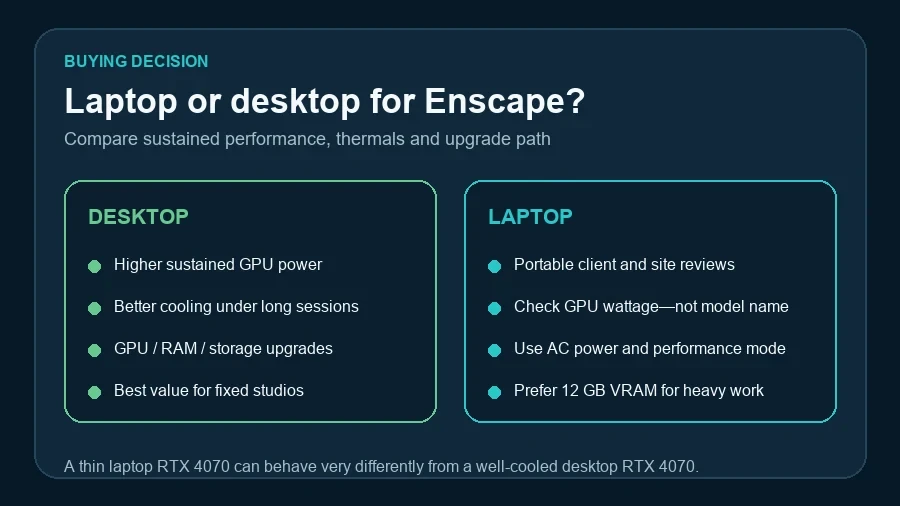
For a laptop, prioritize a well-cooled chassis, 32 GB upgradeable RAM where possible, at least 1 TB NVMe storage and 10–12 GB VRAM for medium-to-heavy work. Test Enscape while the laptop is plugged in and set to its intended performance mode. Docking stations must support accelerated graphics; Chaos warns that ordinary docks may not work correctly.
macOS: Apple Silicon only
Chaos’s current macOS table supports Apple Silicon generations M1 through M4 in specified devices and configurations. Intel Macs with Intel or AMD graphics are listed as unsupported. Enscape relies on the GPU performance and unified memory of Apple Silicon, so memory cannot be upgraded later.
For serious production, choose at least the vendor’s recommended unified-memory configuration—typically 32 GB on many M1/M2 systems and 36–48 GB on listed M3/M4 Pro or Max systems. Chaos currently lists VR as unavailable on macOS. Driver updates arrive through macOS updates rather than a separate NVIDIA or AMD installer.
VR requires more than enough VRAM
Chaos lists 12 GB VRAM and GPUs such as the RTX 4070 Ti or RX 7900 XT for VR. It also notes that GPU clock speed matters strongly for VR. The headset must maintain a high and stable frame rate at two eye views; average desktop-monitor performance is therefore not a reliable VR test.
Before a client session, test the exact headset, cable or streaming path, room setup and final model. Reduce unnecessary geometry and texture sizes, close background applications and keep a non-VR presentation fallback.
A seven-step pre-purchase test
- Open a representative project, not an empty benchmark scene. Include linked models, typical textures and assets.
- Record the baseline: host-application RAM use, GPU utilization, dedicated VRAM, frame rate and model-open time.
- Navigate the difficult views: dense planting, reflective interiors, long sight lines and night lighting.
- Run the intended output: a 4K still, short video or VR session. Interactive navigation alone is not enough.
- Repeat after 20–30 minutes to expose laptop thermal throttling or unstable overclocks.
- Test one optimization pass: reduce oversized textures, hide unused links and replace extreme-poly assets.
- Buy for headroom: if the test already consumes nearly all VRAM or RAM, the configuration is too close to its limit.
- The GPU has dedicated VRAM and supports the required graphics API.
- The host BIM/CAD application and version are supported.
- The machine completes the real target output without memory errors.
- Driver, operating system and Enscape versions are recorded.
- Laptop performance is tested on AC power after a sustained session.
- VR is tested with the final headset and representative model.
FAQ
Is 8 GB VRAM enough for Enscape?
It is the official recommended amount and can be enough for many small and medium projects. For a new professional machine expected to handle denser BIM models, 4K output or several years of growth, 10–12 GB is a safer balanced target.
Does Enscape use multiple GPUs?
No. Chaos states that Enscape uses only one GPU in a multi-GPU system. Spend the budget on one suitable graphics card rather than assuming two modest cards will combine their VRAM or performance.
Can integrated graphics run Enscape?
Chaos lists certain recent Intel and AMD integrated GPUs as capable of running Enscape, but VR and hardware ray tracing are not supported on machines without a dedicated GPU. Treat integrated graphics as an entry or mobility option, not a heavy-production recommendation.
Should I upgrade the GPU or RAM first?
Measure the bottleneck. Upgrade the GPU when dedicated VRAM is full or rendering/navigation is GPU-limited. Upgrade system RAM when Revit, SketchUp or another host application approaches the memory limit before Enscape is fully loaded. Our broader architectural workstation guide explains the full-system balance.
Final recommendation
Do not buy an “Enscape PC” by reading one minimum-specification row. Buy for the heaviest repeatable project you expect to deliver, then leave capacity for the host BIM application, assets, textures and future updates. For most new professional Windows workstations, 10–12 GB VRAM, 32–64 GB RAM and a recent high-clock CPU form the practical center. Heavy BIM and VR justify 16 GB or more VRAM and 64 GB or more system RAM.
If your workflow extends into animation and cinematic delivery, continue with our Enscape to Envision Live Link tutorial.
Sources and further reading
- Chaos Documentation: Enscape for SketchUp system requirements — official Windows/macOS hardware, host-application and VR guidance; checked 29 August 2026.
- NVIDIA official driver downloads.
- AMD official drivers and support.
- Chaos Enscape official product page.
Continue Exploring