
SketchUp 2026 can open on modest hardware, but a machine that handles a small residential model may struggle with a textured urban project, a heavy LayOut set, or a live rendering link. This guide separates Trimble’s official requirements from practical workstation recommendations for real architectural workloads.

Quick recommendation for SketchUp 2026
For a new Windows workstation used for professional architecture, start with a recent high-clock CPU, a discrete GPU with 8–12 GB VRAM, 32 GB RAM, and a 1 TB NVMe SSD. That is a balanced target for houses, interiors, medium commercial buildings, detailed materials, LayOut, and a typical renderer connection.
Move to 12–16 GB VRAM and 64 GB RAM for large linked contexts, PBR-heavy scenes, urban or campus work, extensive extensions, 4K displays, and simultaneous Revit, Photoshop, rendering, or browser use. A rendering plug-in may set a higher GPU requirement than SketchUp itself, so validate the complete software stack.
Official SketchUp requirements: what they actually say
Trimble’s current Windows guidance recommends Windows 11, a 2 GHz or faster processor, a discrete graphics card, at least 8 GB RAM, 6 GB available storage, and a modern GPU with at least 8 GB VRAM. The classic renderer requires OpenGL 3.1 support. The new graphics engine requires DirectX 12 feature level 11.0 on Windows.
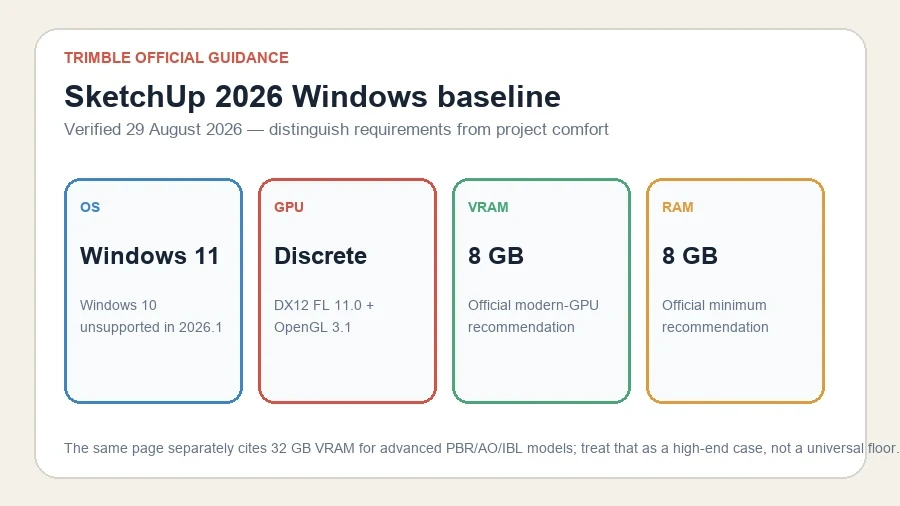
The same official page contains an unusually demanding recommendation: a modern GPU with at least 32 GB VRAM when interacting with models using PBR texture maps, Ambient Occlusion, and Image Based Lighting. Do not read that line as a universal minimum for ordinary SketchUp work. It describes an advanced graphics workload. Most offices should measure representative models before buying workstation-class 32 GB hardware.
Choose hardware by workload, not file size alone
An SKP file’s size does not describe everything the viewport must process. Millions of visible edges, deeply nested components, high-resolution textures, transparent surfaces, shadows, profiles, Ambient Occlusion and PBR maps can make two files of similar size behave very differently.
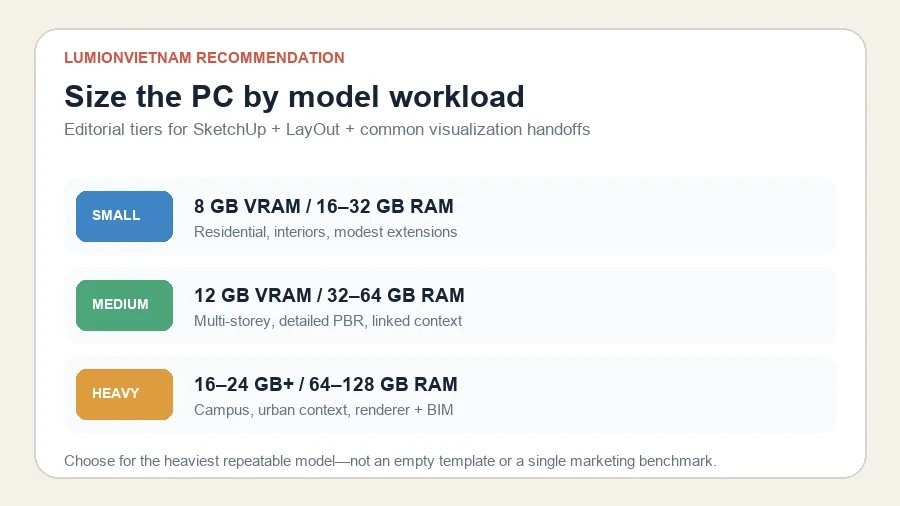
| Workload | Typical project | GPU / VRAM | RAM |
|---|---|---|---|
| Small | House, apartment, compact interior, early massing | Modern discrete GPU, 8 GB | 16–32 GB |
| Medium | School, office, multi-storey residential, detailed PBR | 10–12 GB | 32–64 GB |
| Heavy | Campus, urban context, federated imports, renderer plus BIM | 16–24 GB or more | 64–128 GB |
CPU: protect modeling responsiveness
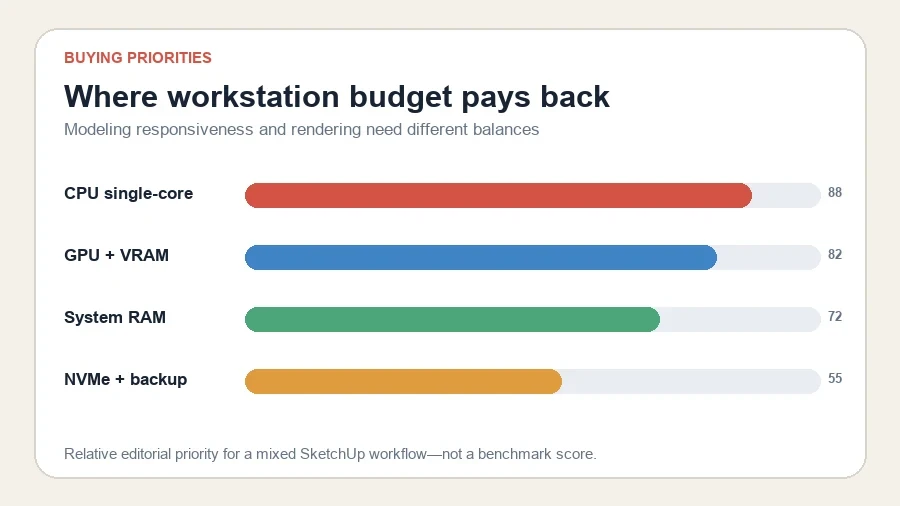
Many everyday SketchUp operations depend strongly on fast individual CPU cores. Select, infer, move, generate geometry, update scenes, and process extension operations must feel responsive before rendering even begins. A modern high-clock CPU is therefore more valuable than buying the maximum number of slower cores for SketchUp alone.
Choose more cores when the same workstation also performs CPU rendering, video encoding, simulation, point-cloud processing, or heavy multitasking. For a pure SketchUp and real-time-rendering machine, moving budget from an extreme many-core CPU to a stronger GPU and more memory often produces a better overall workstation.
GPU and VRAM: new graphics engine, PBR and rendering
SketchUp’s graphics engine controls the interactive viewport. On Windows, the new engine needs DirectX 12 feature level 11.0; the classic engine relies on OpenGL 3.1. If the device does not meet the new-engine requirements, SketchUp can fall back to the classic graphics setting.
Dedicated VRAM holds textures, display buffers and other graphics resources. Eight gigabytes meets current general Windows guidance, but 10–12 GB is a safer balanced target for a new professional system. Use 16 GB or more when high-resolution PBR maps, several high-resolution displays, dense context, or a GPU renderer must share the same card.
A renderer changes the calculation. V-Ray GPU, D5 Render, Enscape, Lumion and local AI tools each have their own compatibility and memory behavior. Size the GPU for the heaviest supported application you will actually use, not only for the SketchUp viewport.
RAM: include LayOut, extensions and linked applications
Trimble lists at least 8 GB RAM, but that amount leaves little room for Windows, browsers, LayOut, Photoshop, Revit and a renderer. Use 16 GB only for controlled learning or small projects. Thirty-two gigabytes is the practical baseline for a new professional machine, while 64 GB is appropriate for large projects and mixed BIM-visualization work.
Choose 128 GB only when measurement supports it—for example, major imported coordination models, point clouds, several heavy applications, or production tasks that regularly exceed 64 GB. More RAM does not repair inefficient geometry, an extension memory leak, or a GPU VRAM limit.
Storage, backup and local project files
Use an NVMe SSD for Windows, SketchUp, extensions, active project files and local asset libraries. Trimble recommends installing and working from the main local drive. A fast SSD reduces application launch, file-open, texture and autosave delays, although it will not make a complex viewport draw faster once all data is loaded.
Keep 15–20% free space, use versioned project folders, and maintain a separate backup. Sync services are useful, but actively editing a model inside a poorly configured sync folder can create lock, conflict or recovery problems. Follow the office’s tested collaboration procedure.
Windows desktop, Windows laptop or Apple Silicon Mac?
A desktop provides the best sustained performance, cooling and upgrade path. It is the preferred choice for large models or regular GPU rendering. A laptop is appropriate for site and client work, but compare the exact GPU power limit, VRAM, fan behavior and upgradeability; two laptops with the same GPU name can perform differently.
SketchUp 2026 supports current macOS releases and Apple Silicon. The new engine requires Metal 2. Unified memory cannot be upgraded later, so select capacity for SketchUp plus rendering and other applications at purchase time. Intel HD 5000/6000, Iris, Iris 6100 and Iris Pro graphics are listed as unsupported for the new engine.
Windows 10 and older versions are not supported from SketchUp 2026.1. Linux, ordinary Remote Desktop connections, Parallels/VMware and attached eGPUs are also outside the supported configurations described by Trimble.
Three practical workstation specifications
Small practice and learning
- Recent 6–8 core high-clock CPU
- Discrete GPU with 8 GB VRAM
- 16–32 GB RAM
- 1 TB NVMe SSD
- One 1080p or 1440p display
Suitable for residential work, interiors and moderate LayOut output. Choose 32 GB RAM if the computer is being purchased new.
Balanced professional workstation
- Recent 8–16 core high-clock CPU
- GPU with 10–12 GB VRAM
- 32–64 GB RAM
- 1–2 TB NVMe plus backup
- Quality 1440p or 4K display
This is the practical center for architecture studios using detailed materials, extensions and a real-time renderer.
Heavy model and visualization system
- High-clock workstation CPU chosen for the renderer
- GPU with 16–24 GB or more VRAM
- 64–128 GB RAM
- 2 TB or larger NVMe plus managed backup
- Power, cooling and display layout sized for sustained load
Buy this tier only when real models or rendering requirements justify it. A large GPU cannot compensate for unoptimized nested geometry or an extension that performs inefficiently.
Run this five-step test before buying
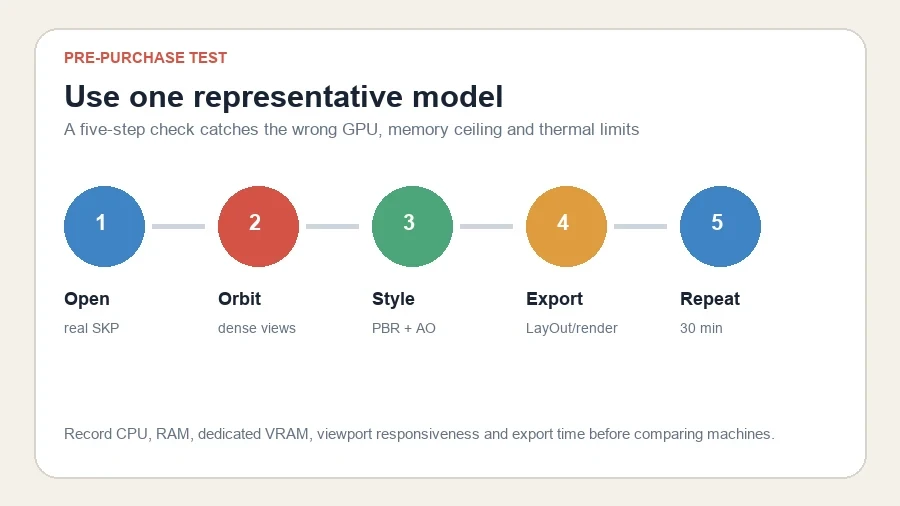
- Open a representative SKP containing the geometry, components and textures used in paid work.
- Orbit through difficult views with the intended edge, shadow and section settings. Note hesitation and redraw behavior.
- Enable the production style, including PBR, Ambient Occlusion and Image Based Lighting when those features are part of the workflow.
- Update LayOut or the renderer and produce the intended deliverable—not only a viewport screenshot.
- Repeat after 30 minutes while recording CPU, system RAM, dedicated VRAM, temperatures and laptop clock behavior.
Troubleshoot before replacing hardware
- Confirm SketchUp is using the discrete GPU rather than integrated graphics.
- Install the current stable graphics driver and keep a known-good rollback installer.
- Compare the new and classic graphics engines under Preferences → Graphics.
- Test extensions one at a time if memory or stability worsens.
- Use components for repeated objects; purge unused assets and simplify hidden detail.
- Resize non-critical 4K/8K textures and limit unnecessary profiles, shadows and transparency.
- Restart after long sessions if memory use continues climbing, then identify the underlying model or extension cause.
FAQ
Is 8 GB VRAM enough for SketchUp 2026?
It matches Trimble’s current general Windows recommendation and is adequate for many small or medium models. Choose 10–12 GB for a new professional machine when PBR, rendering or project growth matters.
Does SketchUp need 32 GB VRAM?
Not for every project. Trimble cites 32 GB for models using advanced PBR textures, Ambient Occlusion and Image Based Lighting. Treat it as a demanding scenario and test your real files before making it a purchasing floor.
Which matters more: CPU or GPU?
Fast CPU cores protect day-to-day modeling response, while the GPU controls viewport graphics and often the connected renderer. A balanced machine is better than maximizing one component without measuring the workflow.
Can SketchUp 2026 run on Windows 10?
Trimble removed official Windows 10 support with SketchUp 2026.1. Even if it launches, an unsupported operating system is inappropriate for a new production deployment.
For a broader rendering purchase decision, use our architectural rendering workstation guide and GPU-memory troubleshooting workflow.
Official sources
Continue Exploring