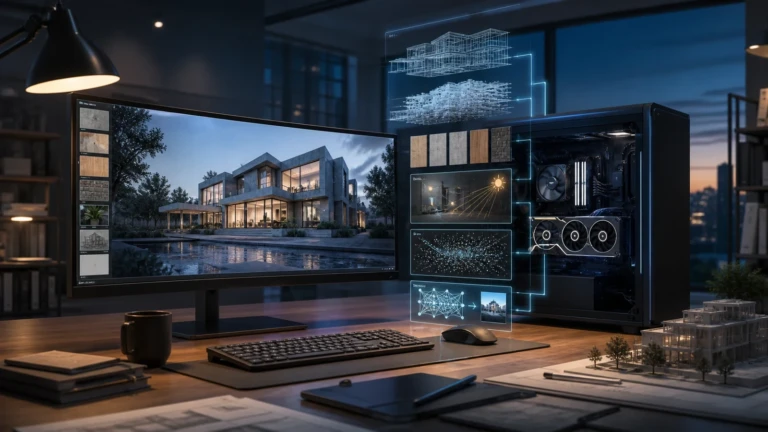
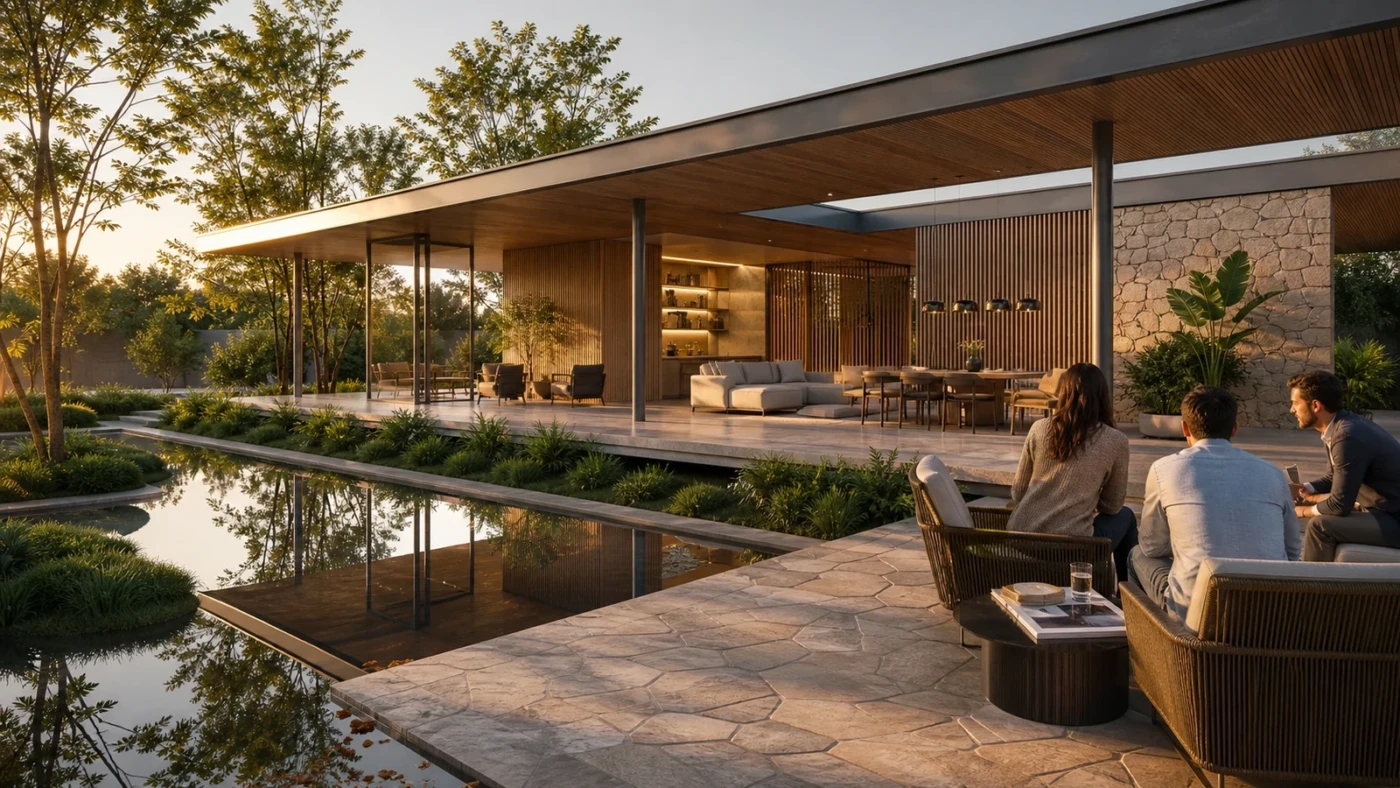
Lumion 2026.1 is more than a material and panorama update. Its strongest production gains come from reusable templates, portable placement collections, saved effect styles, faster scene cleanup, custom parallax interiors, and a more credible client walkthrough. This guide shows where those tools fit in a real architectural workflow.
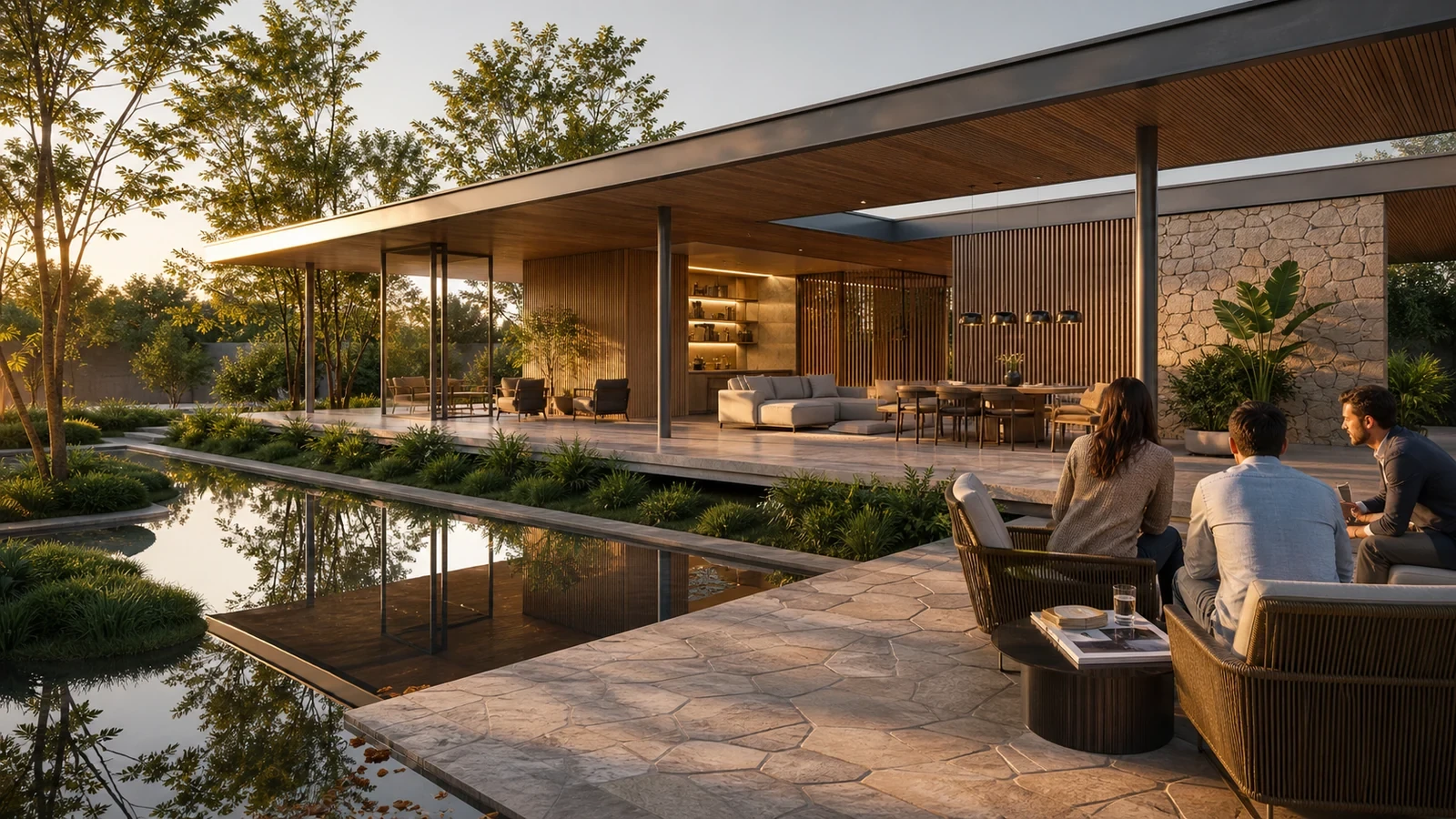
Lumion 2026.1 arrived on July 14, 2026, and the current maintenance build verified for this article is 2026.1.2, released on July 27. The headline features are the Pattern Editor and ray tracing for 360 panoramas, but those are only part of the update. For studios delivering several images, options, and review sessions from the same project, the quieter workflow tools may save more time.
This article focuses on the upgrade decisions and repeatable production steps that were not covered in our existing Pattern Editor and ray-traced panorama guide. All version-specific facts were cross-checked against Lumion’s official release notes and support documentation on August 20, 2026.
What is actually new in Lumion 2026.1?
The release contains ten headline areas plus fixes. In practical terms, they fall into four production groups:
| Workflow problem | Lumion 2026.1 tool | Best use | Main limitation |
|---|---|---|---|
| Every project starts from an empty scene | Custom Templates | Office-standard terrain, layers, context, and starter assets | Template files must match the current license type. |
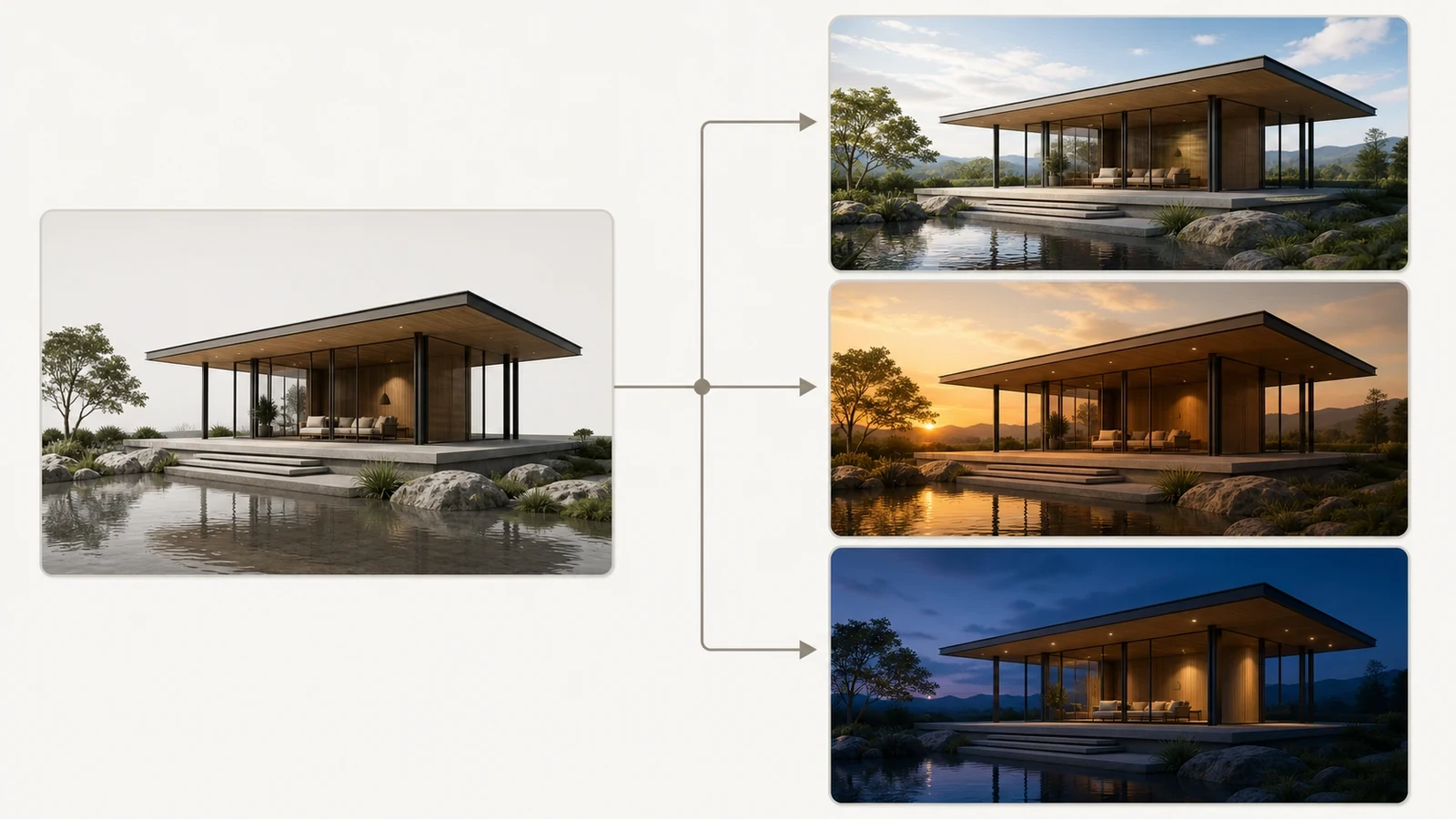
| Effects are rebuilt for every camera or project | Custom Styles | Reusable daylight, dusk, diagram, and review looks | Effects incompatible with the current output mode are skipped. |
| Landscape mixes are selected repeatedly | Multi-Placement Collections | Reusable planting palettes for Area, Line, Cluster, and Paint Placement | .lpc collections are category-specific. |
| Dense placement is slow to revise | Delete Brush | Rapid cleanup of vegetation and other large object groups | Brush size must be controlled near paths and focal planting. |
| Repeated interiors increase geometry | Custom Parallax EXR | Lightweight depth behind windows | It is a depth illusion, not a substitute for modeled hero interiors. |
| Client navigation feels like a flying camera | Theatre Walkthrough | Eye-level review at a natural walking speed | Presentation quality still depends on clean collision surfaces and paths. |
Pattern Editor, ray-traced panoramas, Lumion Cloud VR support, a more selective update screen, and revamped assets complete the feature set. Version 2026.1.2 also fixes missing geometry in some DWG imports, imported-model thumbnail artifacts, and expands Parallax Interior width ratios from 1:1–3:1 to 1:1–9:1. Those maintenance fixes are a strong reason to use 2026.1.2 rather than the initial 2026.1.0 build.
Build a reusable project starter with Custom Templates
A template should remove repetitive setup without carrying project-specific baggage. A useful office template can contain a neutral terrain, layer naming, entourage zones, a north-reference object, preferred context assets, and a few validated materials. It should not contain a client’s confidential model or a heavy landscape that every project must delete.
Step-by-step template workflow
- Open a clean Lumion 2026.1 scene and configure only the elements that should appear in most projects.
- Create and name layers by function—for example Imported Design, Existing Context, Landscape, People, and Presentation Lights.
- Remove unused imported models and check the Performance Center before saving. The starter should be lighter than a normal live project.
- Save the scene as an
.LSFfile with a clear versioned name such asLV_Exterior_Starter_2026-1.lsf. - Return to the start screen. Under Create new project, open the new Custom tab, click the + button, and select the saved scene.
- Create a test project from the new entry. Confirm that layers, terrain, context, and reusable assets load while project-specific models remain absent.
If Lumion warns that a template came from an older version, open that source file in the current version, save a new copy, and add the updated file again. Student .LSFS scenes and commercial Lumion Pro projects are license-specific, so do not design a mixed-license office workflow around exchanging template files.
Standardize presentation looks with Custom Styles
Custom Styles solve a different problem: they make effect stacks reusable. A studio can maintain a restrained set of looks—neutral daylight, warm exterior dusk, interior review, material diagram, and competition grade—without copying an old camera and inheriting project-specific mistakes.
- Open Photo, Movie, or Panorama mode and build a validated effect stack for one clear purpose.
- Keep exposure and white balance conservative. A reusable style should provide a reliable baseline, not force every project into one dramatic grade.
- With at least one effect active, open the three-dot or effect-list context menu and choose Save as custom style.
- Name the style by output and intent, such as
PHOTO_Daylight_Neutral_v1, instead of a vague name likeGood Exterior. - Open another project, enter the Styles Gallery, select Custom Styles, and load the profile from the Custom tab.
- Check the effect list after loading. Lumion skips effects that are not compatible with the current mode; do not assume every effect transferred.
- Create a clean project from the template rather than testing only the source scene.
- Confirm layer names and starter assets are present.
- Apply each saved style in its intended output mode.
- Check that no incompatible effect was silently omitted.
- Render the same test camera before distributing the standard to a team.
Reuse landscape palettes with Multi-Placement Collections
Area Placement became a major landscape tool in Lumion 2026.0. Version 2026.1 makes the object selection itself portable. When you assemble a balanced mix of canopy trees, understory plants, and groundcover in a multi-placement tool, you can save that collection as an .lpc file and load it again later.
A repeatable planting workflow
- Choose the correct asset category, such as Nature, before opening Area, Line, Cluster, or Paint Placement.
- Build a small ecological palette instead of selecting many unrelated species. For a temperate scheme, separate canopy, understory, and groundcover roles.
- Set density and variation on a test area where plant scale can be judged against people, doors, and paths.
- Save the object collection as an
.lpcfile using climate and layer in the name—for exampleTemperate_Understory_v2.lpc. - Load the collection in another multi-placement tool within the same category and confirm every expected asset resolves.
The category restriction matters: a Nature collection can be reloaded only while the Nature asset tool is active. Treat .lpc files as curated palettes, not universal object packages.
Clean dense scenes safely with Delete Brush
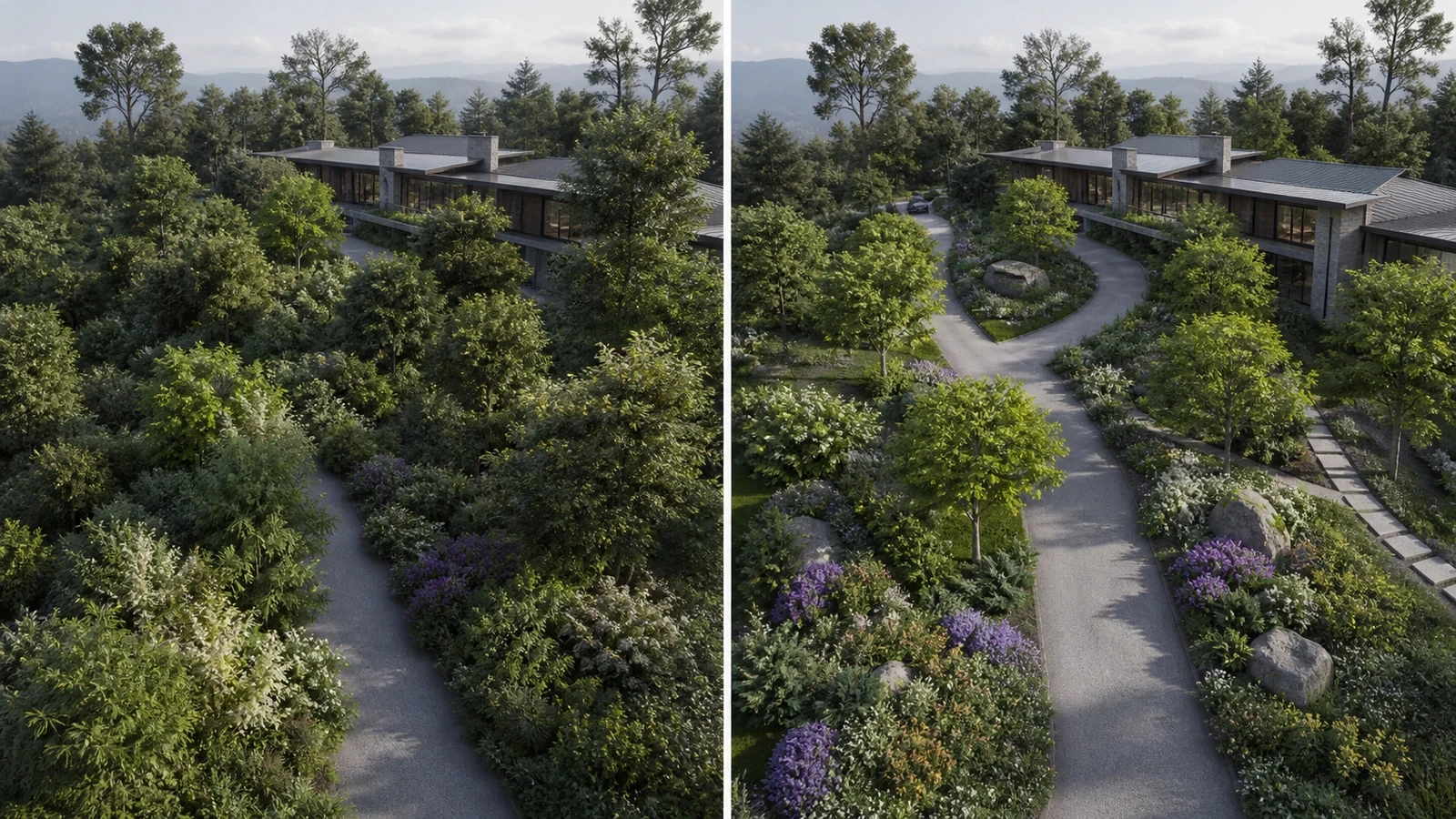
The new Delete Brush removes many objects by painting across the scene rather than selecting individual object nodes. It is particularly useful when a landscape concept changes after Area or Paint Placement.
- Save a project copy or create a restore point before deleting a large placement.
- In Build Mode, activate Delete Brush and begin with a small brush size.
- Clear obvious unwanted density in open areas first. Avoid working next to paths, facade planting, or feature trees until the selection behavior is predictable.
- Increase the brush only for broad cleanup zones, then reduce it again for edges.
- Review from ground level as well as above. An aerial view can hide gaps that become obvious from the camera path.
Use Custom Parallax EXR for background interiors
Lumion 2026.1 can load compatible .EXR maps into Parallax Interiors Effect Objects and save them to the Custom Library. This is useful for repeated rooms behind windows where fully modeled interiors would add geometry, setup time, and synchronization work.
Use parallax interiors for midground and background windows, hotel rooms, apartment stacks, and office floors that need depth but are not the subject of a close hero image. Keep modeled interiors for spaces with visible furniture silhouettes, strong reflections, animation passing near the glazing, or client decisions that depend on actual room geometry.
Version 2026.1.2 expands the supported width ratio to 1:1–9:1, making wider rooms easier to match. After loading a map, test the result from the full camera path—not just one still—because a depth illusion that works frontally can break at an oblique angle.
Run a more natural client review in Theatre Mode
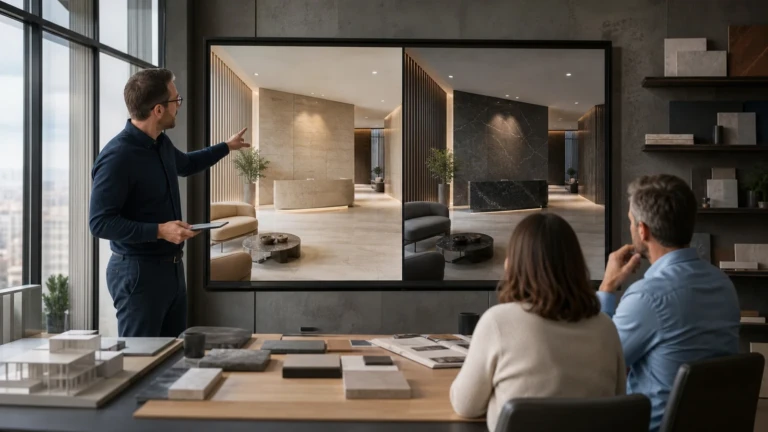
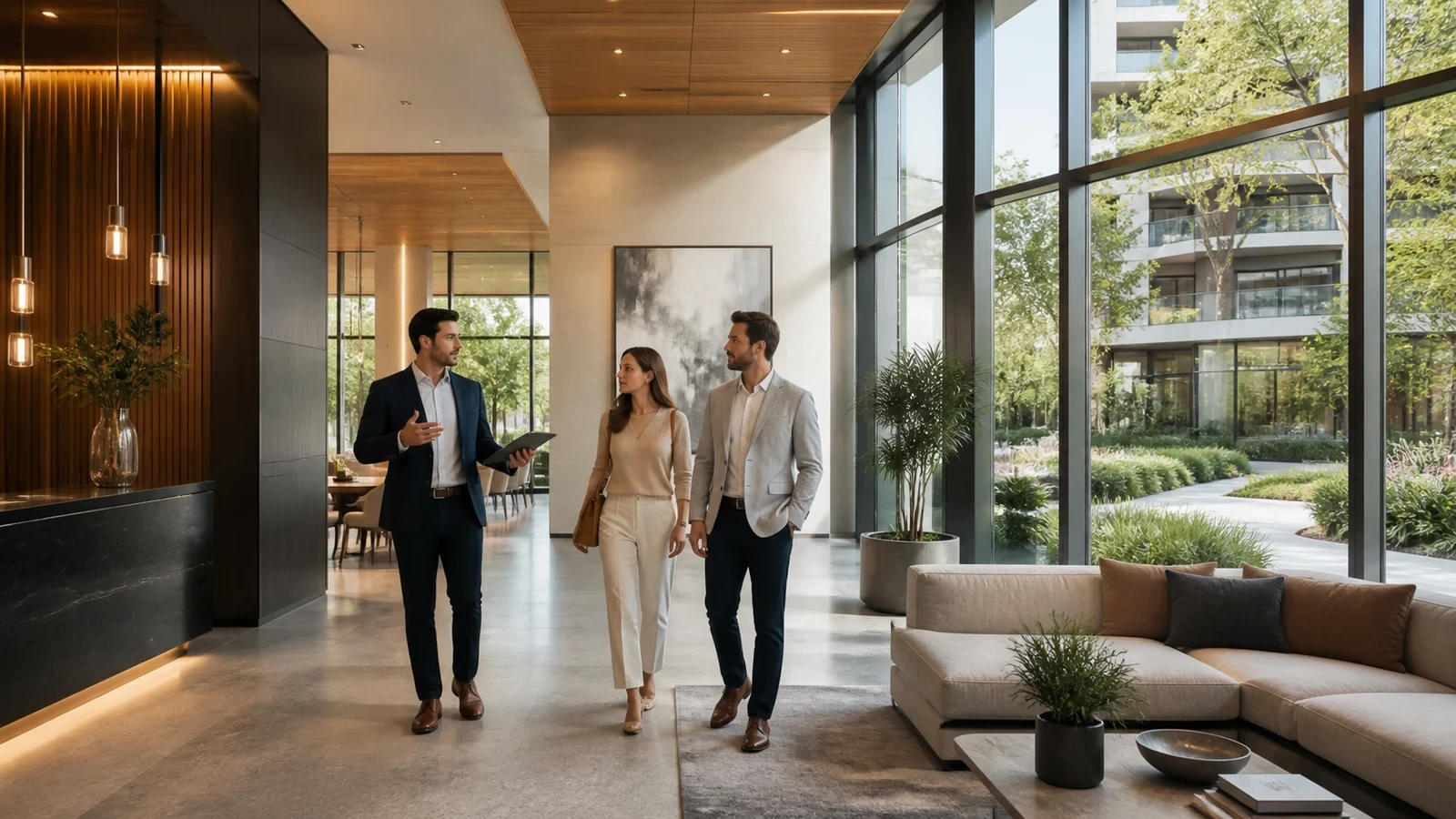
In full-screen Theatre Mode, opened with F11, the new Walkthrough toggle holds the camera at approximately 1.6 meters above the ground and moves at a regular walking speed while following changes in terrain or floor geometry. It gives non-technical reviewers a more architectural sense of scale than a freely flying camera.
Pre-meeting walkthrough check
- Open Theatre Mode with F11 and enable the Walkthrough toggle at the lower-left of the interface.
- Walk the complete intended route: entrance, lobby, primary rooms, terraces, and exits.
- Check floor transitions, ramps, steps, landscape edges, and imported surfaces for sudden height changes.
- Remove or relocate invisible collision problems before the meeting. Keep a saved camera route as a fallback if free navigation becomes distracting.
- Test the presentation on the actual display and input device that will be used with the client.
Pattern Editor and ray-traced panoramas still matter
The Pattern Editor builds customizable bonds, herringbone, chevron, basket weave, hexagon, and other layouts from a compatible Standard Material. It controls tiling, variation, bevel, and grout, but it is unavailable for Glass, Fur, 3D Grass, Leaves, and Water materials. Landscape Tiling is also disabled while Pattern is active.
Ray tracing is now available in Panorama Mode, but it is not feature-equivalent to the hybrid renderer. Official release notes limit ray-traced panorama output to Draft 3072×1536 or Medium 4096×2048; Large output, stereoscopic output, and cubic projection are unavailable. Animated characters, decals, several effect objects, clipping planes, ocean and water planes, 3D grass, weathering, and multiple output effects can disappear or be disabled in the ray-traced pipeline.
For the detailed material setup and panorama decision process, use our step-by-step Lumion 2026.1 Pattern Editor and panorama guide.
Update to Lumion 2026.1.2 without risking active work
- Open Settings → License and record the exact installed version.
- Back up active
.LSFprojects, imported models, custom materials, groups, and any studio-standard files. - Keep the earlier Lumion version and its document folder separate until upgraded projects have passed QA.
- Use the in-app Updater when your installed build supports the 2026.1 update path. If it does not, download the full installer from your Lumion Account and follow the account-specific instructions.
- Open a duplicated representative project—not the only copy—and save it under a new 2026.1 filename.
- Check imported DWG geometry, custom materials, placement collections, effects, panoramas, and final output before migrating live production.
- Lumion reports version 2026.1.2.
- The original pre-2026.1 project still exists and remains unopened by the new version.
- Imported model geometry and thumbnails are complete.
- Custom materials and templates resolve from the intended folders.
- One representative still, movie frame, and panorama match the approved project baseline.
- The team knows that 2026.1 files cannot return to an older Lumion version.
Should your studio upgrade now?
Upgrade now if your team regularly rebuilds project environments, repeats effect stacks, creates landscape variations, presents with live walkthroughs, uses parallax interiors, or imports DWG files affected by the initial 2026.1 issue. The cumulative workflow improvements are more important than any single headline feature.
Test before upgrading if a deadline-critical project depends on older-version collaboration, large ray-traced panoramas, stereoscopic output, animated entourage, decals, water, grass, or effects that are not supported in the panorama ray-tracing pipeline.
Stay temporarily on the current version when collaborators must continue opening the same project in an older Lumion release. Backward incompatibility is a project-management constraint, not a minor technical footnote.
Frequently asked questions
What is the latest Lumion version?
As verified on August 20, 2026, the latest published maintenance build in the Lumion 2026.1 release notes is Lumion 2026.1.2, released July 27, 2026.
Can Lumion 2026.1 open projects from older versions?
Yes, but use a duplicate and follow Lumion’s migration guidance. Once saved in 2026.1, the project cannot be opened in an older Lumion version.
Are Custom Styles copied into every output mode?
A saved style can be loaded from the Custom tab, but effects incompatible with the current mode are skipped. Always inspect the loaded effect list.
Does the Delete Brush replace careful object selection?
No. It accelerates broad cleanup. Near paths, facade planting, or hero objects, reduce the brush size and work from a saved project copy.
Is ray tracing available for 8K panoramas?
Not in the verified 2026.1 release. Official notes limit ray-traced panoramas to Draft and Medium resolutions and list several unsupported object, material, and effect types.
- Lumion Support — Lumion 2026.1 Release Notes
- Lumion Support — Lumion 2026: Everything You Need to Know
- Lumion Support — How Do You Use the Pattern Editor?
- Lumion Support — Custom Styles in Lumion 2026
- Lumion Support — Model and Material Library Content in Lumion 2026
- Lumion Support — Get the Latest Upgrade or Update
Continue Exploring