








A V-Ray workstation cannot be specified until you choose the render engine. V-Ray CPU rewards cores and system RAM; V-Ray GPU depends on supported hardware and enough VRAM for the whole scene; Hybrid combines resources but adds its own balance. This guide turns Chaos’s current requirements into practical workstation tiers for architectural production.
Quick answer: a balanced V-Ray 7 workstation
For mixed SketchUp or 3ds Max architectural work, start with a recent high-clock 12–16 core CPU, a supported GPU with 16 GB VRAM, 64 GB system RAM, and a 2 TB NVMe SSD. This is a sensible middle tier for detailed houses, interiors, commercial spaces and moderate animation.
Move to 24 GB or more VRAM and 128 GB RAM for large transport, hospitality, campus and urban scenes, extensive 4K/8K textures, displacement, scatter, high-resolution output or local AI. For CPU-only rendering, prioritize additional cores and RAM instead of buying a flagship GPU that will sit idle.
Choose V-Ray CPU, GPU or Hybrid first
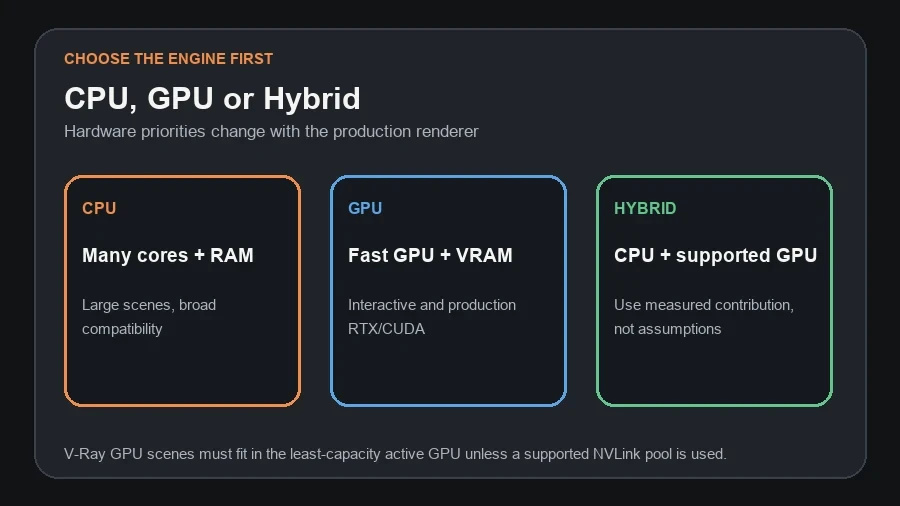
V-Ray CPU
CPU rendering uses processor cores and system memory. It remains the broad compatibility route for very large scenes, CPU-oriented render farms and workflows that depend on features not matched in the GPU engine. More cores generally improve throughput, while high clock speed protects modeling and interactive work.
V-Ray GPU
CUDA or RTX rendering uses supported NVIDIA hardware; current V-Ray 7 releases also support listed AMD RDNA generations. The entire scene—geometry, textures and render buffers—must fit in GPU memory for CUDA or RTX mode. Faster cards improve iteration, but insufficient VRAM can stop the render regardless of compute speed.
Hybrid and CUDA x86
CUDA can combine supported GPUs and CPUs. Chaos also provides CUDA x86, which can use system RAM and paging without requiring a GPU. Hybrid is worth testing when the CPU makes a measurable contribution; it is not automatically faster in every workstation or scene.
Official minimums versus production recommendations
Chaos lists an AVX2-capable Intel 64, AMD64 or compatible CPU and at least 8 GB system RAM for V-Ray GPU. The recommended guidance raises RAM to 32 GB or more and states that system memory should be equal to or greater than twice GPU memory. For multi-GPU systems, Chaos recommends roughly six physical CPU cores per GPU.
Those figures are compatibility guidance, not an architectural project guarantee. SketchUp, 3ds Max, Revit links, Photoshop, asset browsers and other applications remain in memory alongside the renderer. A new professional workstation should therefore normally begin at 32–64 GB rather than the 8 GB minimum.
VRAM: size it for the largest complete scene
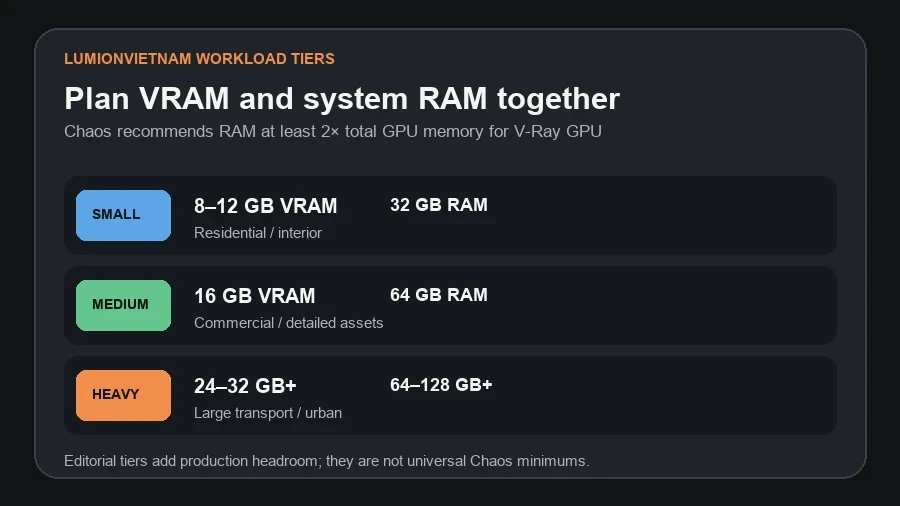
- 8–12 GB VRAM: smaller residences and interiors, controlled textures, moderate still output.
- 16 GB VRAM: balanced professional tier for larger commercial scenes, detailed assets and frequent GPU rendering.
- 24 GB or more: dense transport, campus and urban projects, heavy scatter, displacement, 4K/8K textures and large outputs.
- 32 GB or more: specialist production, very large scenes, advanced local AI or measurable workloads that repeatedly exceed 24 GB.
Capacity and speed are separate. A fast 12 GB card may finish a small scene sooner, while a slower 16 GB card can render a scene that does not fit into 12 GB at all. Measure peak memory on representative projects before choosing between them.
Multi-GPU memory: the smallest card is usually the limit
V-Ray normally copies the full scene to every active GPU. Two 12 GB cards can increase render speed, but they do not ordinarily create a 24 GB scene pool. When different capacities are mixed, the scene must fit into the smallest active device.
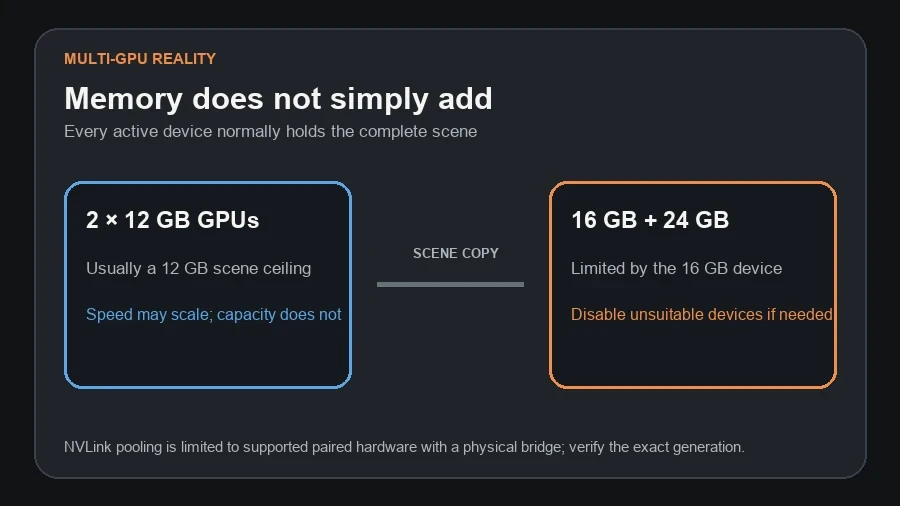
Chaos documents pooling for certain pairs of NVIDIA GPUs connected by a physical NVLink bridge. NVLink availability is limited by GPU generation and model; do not design a new workstation around pooled memory without verifying the exact cards, bridge, motherboard spacing and V-Ray configuration.
CPU: cores for rendering, clock speed for authoring
A CPU-rendering workstation benefits from many efficient cores, adequate cooling and enough RAM to avoid paging. A high-core Threadripper-class system can also contribute strongly in CUDA x86 or Hybrid workflows. However, SketchUp and many modeling operations still reward high single-core responsiveness.
For a GPU-first workstation, choose a modern CPU with enough PCIe lanes, PCIe 4.0 or newer support, and roughly six physical cores per planned GPU. Avoid overspending on the maximum core count if the GPU performs nearly all billable rendering.
System RAM and storage
Use at least 32 GB for small professional work and 64 GB for the balanced tier. Choose 128 GB or more when the host model, V-Ray scene, compositing tools and texture preparation regularly exceed 64 GB. Chaos’s GPU recommendation—system RAM at least twice total GPU memory—is a useful floor: a 24 GB GPU points to at least 48 GB, which practically means a 64 GB configuration.
Use NVMe storage for the operating system, host application, active scene, asset cache and temporary files. Storage affects loading, saving and cache behavior, but not the raw compute rate after data is resident. Maintain a separate versioned backup and test network throughput when assets or distributed rendering nodes use shared storage.
NVIDIA, AMD and Apple Silicon
Chaos currently supports NVIDIA Maxwell-generation or newer hardware for CUDA/RTX, with RTX mode requiring RTX-class cards. Recent V-Ray 7 GPU guidance also lists supported AMD RDNA2, RDNA3, RDNA 3.5 and RDNA4 devices, recommending generations above RDNA3. Support is model- and driver-specific; check the official list rather than assuming every card in a family works.
V-Ray 7 adds Metal support on current macOS releases and Chaos highlights improved Apple M3/M4 performance. The correct choice depends on the host application and plug-in version. A Mac cannot be evaluated from V-Ray’s renderer alone if the required DCC, extension or downstream tool is Windows-only.
Three workstation tiers
| Workload | CPU | GPU | RAM | Storage |
|---|---|---|---|---|
| Small | Modern 8–12 core | 8–12 GB VRAM | 32 GB | 1 TB NVMe |
| Balanced | 12–16 high-clock cores | 16 GB VRAM | 64 GB | 2 TB NVMe |
| Heavy | 16–64+ cores by engine | 24–32 GB+ VRAM | 128 GB+ | 2–4 TB NVMe plus backup |
These tiers intentionally avoid current product names because pricing and availability change faster than architectural workloads. Compare capacity, sustained cooling, driver support, power supply, PCIe layout and measured V-Ray performance on purchase day.
Run a representative V-Ray test
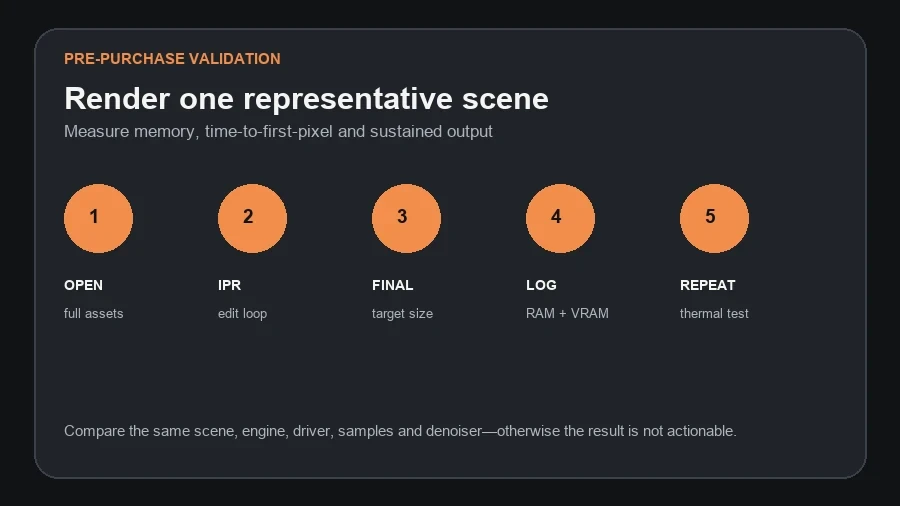
- Open a complete paid-project copy with real proxies, scatter, displacement and textures.
- Run Interactive rendering at the working viewport size and record time to first usable image.
- Render the intended final resolution and quality settings.
- Record system RAM, dedicated VRAM, render time, temperatures and any memory warnings.
- Repeat after a sustained session to expose throttling, instability or an overclock.
Pre-purchase checklist
- Choose CPU, GPU or Hybrid before selecting components.
- Verify the exact host application and V-Ray 7 build.
- Confirm AVX2, GPU generation and current recommended driver.
- Measure the largest representative scene’s RAM and VRAM use.
- Keep system RAM at least twice planned GPU memory for GPU work.
- Check power supply, connectors, cooling, chassis clearance and PCIe spacing.
- Avoid production overclocking; Chaos recommends default clocks for stability.
- Validate network and storage when assets or render nodes are remote.
FAQ
How much VRAM does V-Ray 7 need?
There is no universal value. The full scene must fit in VRAM for CUDA or RTX. Eight to 12 GB suits controlled work, 16 GB is a balanced professional tier, and 24 GB or more serves heavy production.
Do two GPUs combine VRAM?
Normally no. Each device receives a complete scene copy, so the smallest active GPU sets the limit. Only specific NVLink configurations can pool memory.
Is CPU or GPU better for V-Ray?
GPU is excellent for fast iteration and production when the scene fits and features are supported. CPU offers broad compatibility and access to large system-memory pools. Test the exact workflow rather than treating one engine as universally superior.
Can system RAM replace VRAM?
Not in normal CUDA or RTX rendering. CUDA x86 can use system RAM and paging, and texture-memory options can reduce pressure, but they have different performance behavior.
Official sources
Continue Exploring