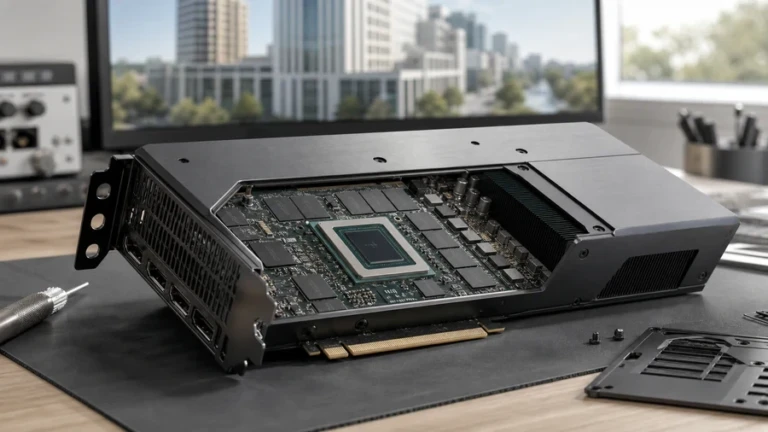
The minimum specification tells you whether D5 Render can launch. It does not tell you whether a workstation can navigate a landscaped campus, export a 4K animation, or run D5 beside Revit and Photoshop. This guide separates D5’s official requirements from practical workstation recommendations for real architectural workloads.
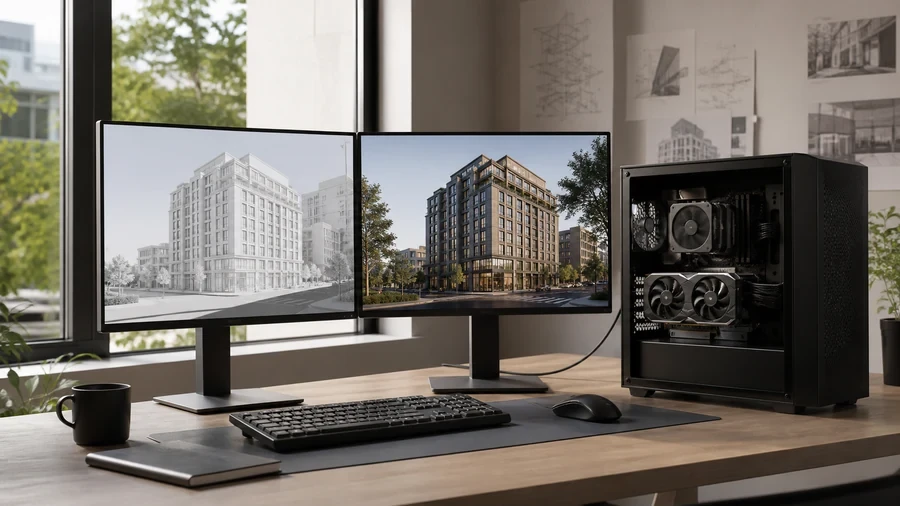
D5 Render’s official minimum is a compatibility floor
D5 Render uses Microsoft DirectX Raytracing (DXR), so the graphics card and Windows version are hard compatibility gates. D5’s current manual identifies the NVIDIA GeForce GTX 1060, Intel Arc A3 family and AMD Radeon RX 6400 as minimum GPU families, with supported-model tables on the same page. The GTX 1060 entry is the 6GB model. D5 also performs a hardware check at first launch.
The official documentation requires Windows 10 version 1809 or newer because the rendering pipeline depends on DirectX 12 and DXR. Its troubleshooting notes recommend Windows 10 21H2 or newer for modern NVIDIA drivers and advise keeping the graphics driver current. D5 currently supports Windows, not macOS, and requires a supported discrete GPU rather than relying on an integrated graphics processor.
These facts answer “can it run?” They do not define a comfortable professional workstation. A GTX 1060 can pass the minimum gate yet provide little headroom for dense vegetation, large PBR texture sets, high-resolution output or another GPU application running at the same time.
| Component | Official position | What it means in practice |
|---|---|---|
| GPU | Supported DXR-capable discrete GPU; GTX 1060 / Arc A3 / RX 6400-class floor | Compatibility is not the same as fluid production performance. |
| VRAM | Varies by supported GPU; D5 primarily uses dedicated GPU memory | Scene complexity and output resolution determine useful capacity. |
| Operating system | Windows 10 v1809 or newer; newer builds advised for current drivers | Use a fully updated Windows 10/11 production image. |
| Driver | Current vendor driver recommended | Validate a driver on one machine before a studio-wide rollout. |
| Multiple GPUs | No parallel/interconnected multi-GPU operation | Buy one stronger GPU instead of planning around combined VRAM. |
Choose the workstation from the largest repeatable workload
Do not size a machine from the smallest scene that opens successfully. Choose a representative deadline workload: the heaviest model, texture set, vegetation pass and output you expect to repeat each month. Keep the modeling application, reference browser and usual image editor open during the test. That exposes the system balance your real workflow needs.
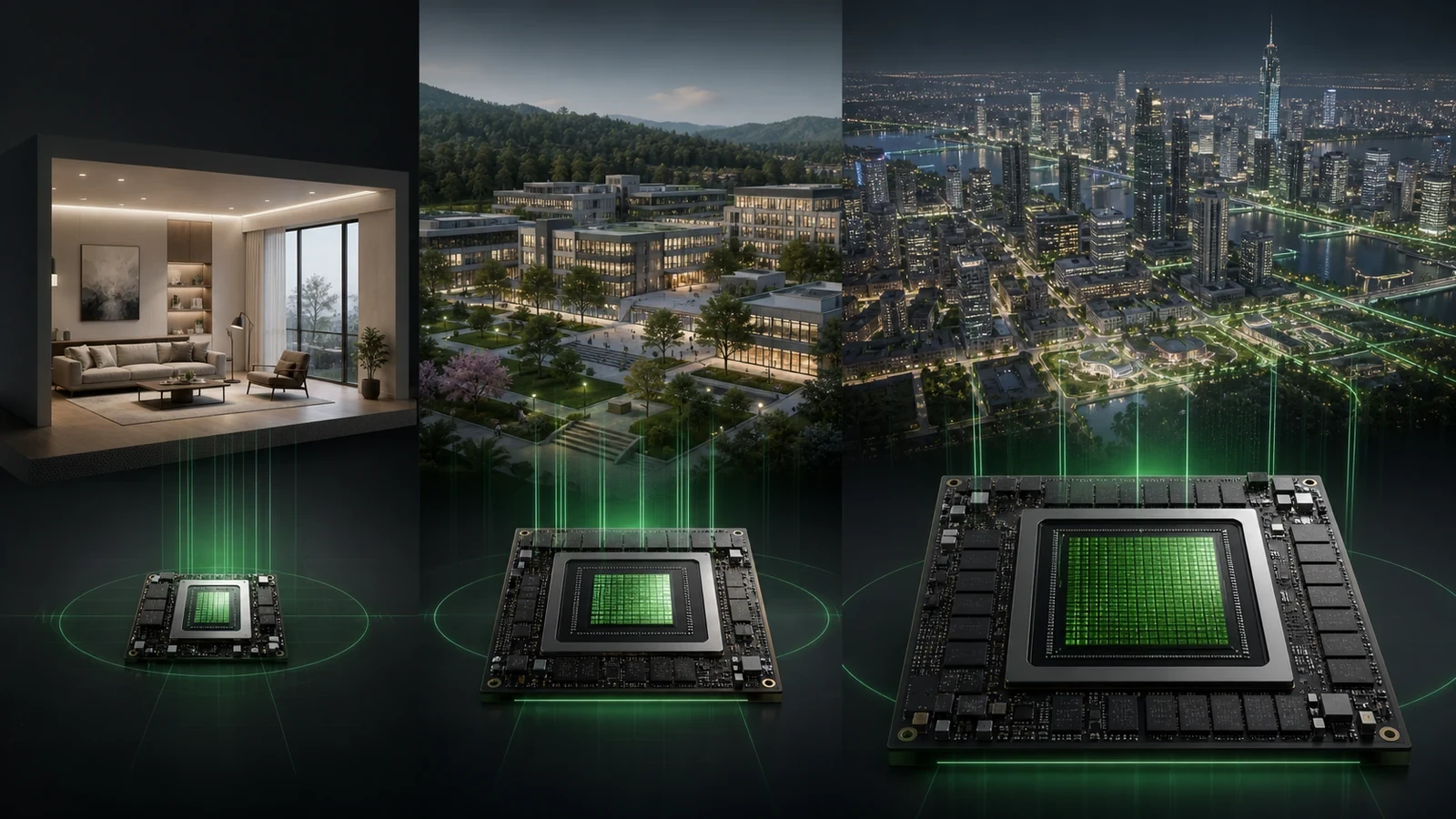
The three tiers below are LumionVietnam editorial recommendations, not official D5 specifications. They deliberately describe capacity and workload before brand or price. GPU availability, regional pricing and laptop power limits change faster than an architectural workstation lifecycle.
Small projects and learning
For single interiors, small houses, modest vegetation and still images up to 2K, target a modern ray-tracing GPU with 8–12GB of VRAM, 32GB of system RAM, a recent six- to eight-core CPU and a 1TB NVMe SSD. Twelve gigabytes gives safer texture headroom than an 8GB card when both cost and performance are reasonable. This tier is suitable for learning and controlled freelance work, but it is not a promise that every downloaded high-poly scene will remain responsive.
Professional interiors, villas and campus scenes
For daily commercial work, 16GB of VRAM is the balanced target. Pair it with 64GB of RAM, a fast modern eight- to twelve-core CPU and at least a 2TB NVMe SSD. This tier better tolerates linked SketchUp/Revit models, several 4K material sets, animated vegetation, multiple design options and 4K stills without forcing aggressive cleanup at every deadline.
Dense landscapes, city scenes and animation
For large campuses, dense urban context, heavy landscaping, long animations or frequent 4K delivery, aim for 24–32GB of VRAM, 64–128GB of RAM and 2–4TB of fast NVMe storage. A fast 12- to 16-core CPU helps imports, decompression, multitasking and companion applications even though D5 states that CPU differences generally have less effect on its renderer than the GPU. This tier should still be tested with a real project; expensive hardware cannot repair uncontrolled geometry or texture choices.
The GPU matters most, but VRAM and speed solve different problems
GPU compute performance determines how quickly D5 updates ray-traced lighting, reflections and the viewport. VRAM determines how much geometry, texture and rendering data can remain close to the GPU. A faster 8GB card may feel excellent in a clean interior but hit a capacity wall in a planted masterplan; a slower card with more memory may hold the scene yet deliver lower frame rates.
D5’s 2026 GPU guide notes that 4K–8K textures and high-poly assets can saturate 6–12GB cards, while texture streaming and scene optimization reduce pressure. Treat those optimizations as useful headroom, not permission to import every asset at maximum resolution. For purchase planning, measure peak dedicated GPU memory in the scenes you already produce and add roughly 25–35% headroom.
- Confirm the exact desktop or laptop GPU appears on D5’s supported list.
- Check dedicated VRAM, not shared system memory.
- Compare real power limits and cooling, especially between laptops with the same GPU name.
- Choose one strong GPU; D5 does not combine multiple cards for rendering.
- Leave capacity for the largest scene and final output, not only the empty viewport.
- Check power-supply capacity and physical clearance before a desktop upgrade.
CPU: prioritize current architecture and stability
D5’s hardware manual says different CPUs generally have little effect on D5 itself and recommends disabling CPU overclocking for stability. That does not make the CPU irrelevant. SketchUp, Revit, 3ds Max, file import, asset preparation, compression and background applications still depend on it. A responsive workstation therefore needs strong per-core performance and enough cores for multitasking, not an extreme core count bought at the expense of the GPU.
For a new balanced system, a current six- or eight-core processor is a sensible entry; eight to twelve fast cores fit most professional work; twelve to sixteen cores become useful when D5 shares the machine with BIM, CPU rendering or video encoding. D5 also documents stability issues affecting some Intel Core i9-13900K/KF/KS and i9-14900K/KF/KS systems and points users to motherboard BIOS/microcode updates. Check the vendor’s current guidance before deploying those processors.
RAM: protect the whole workflow, not only D5
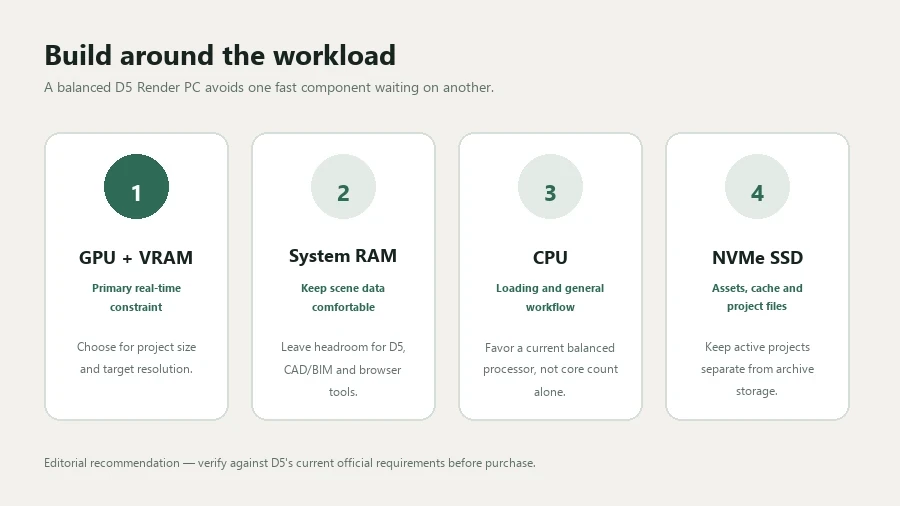
System RAM holds Windows, the modeling application, D5 processes, browser references, image editing and data that cannot remain in VRAM. D5’s public minimum page focuses on GPU/OS compatibility rather than publishing one universal RAM target, so the following figures are editorial workload recommendations.
Use 32GB as the practical floor for a new D5 workstation. Choose 64GB when Revit or 3ds Max remains open beside D5, when linked models are large, or when Photoshop composites use many layers. Consider 128GB for city-scale BIM, heavy multitasking, local AI or simultaneous rendering and video work. Install matched memory modules supported by the motherboard and leave a clear upgrade path where possible.
SSD: separate capacity, speed and backup
D5’s installation guide allows a custom installation directory and a movable workspace; it advises reserving more space when assets stay in the installation path. For production, use an NVMe SSD rather than a hard disk for Windows, D5, the active project and cache. A 1TB drive is workable for learning, while 2TB is a more realistic professional starting point once libraries, synchronized models, exports and source textures accumulate.
Storage speed does not replace GPU performance, but it reduces launch, import, cache and asset-loading friction. Keep at least 15–20% free space, archive finished projects separately and maintain a backup that is not merely another folder on the same drive. If the workstation supports two NVMe drives, separating applications/cache from active projects can simplify capacity management.
Technical reference: D5 Tutorials. Open directly on YouTube.
Windows and drivers: use a controlled production baseline
D5 supports Windows 10 and Windows 11, but its operating-system guidance recommends staying updated. The manual warns that newer NVIDIA drivers can conflict with old Windows 10 builds and recommends Windows 10 21H2 or newer in that context. For a new 2026 workstation, an up-to-date Windows 11 installation is the cleaner long-term baseline unless a required BIM plugin has a documented compatibility reason to remain on Windows 10.
“Latest driver” should still be handled carefully during a deadline. Record the stable version, create a restore path, update one machine first and test a known scene, still export and animation before rolling the driver across a studio. Avoid unsupported Windows builds and unofficial driver packages.
Laptop versus desktop for D5 Render
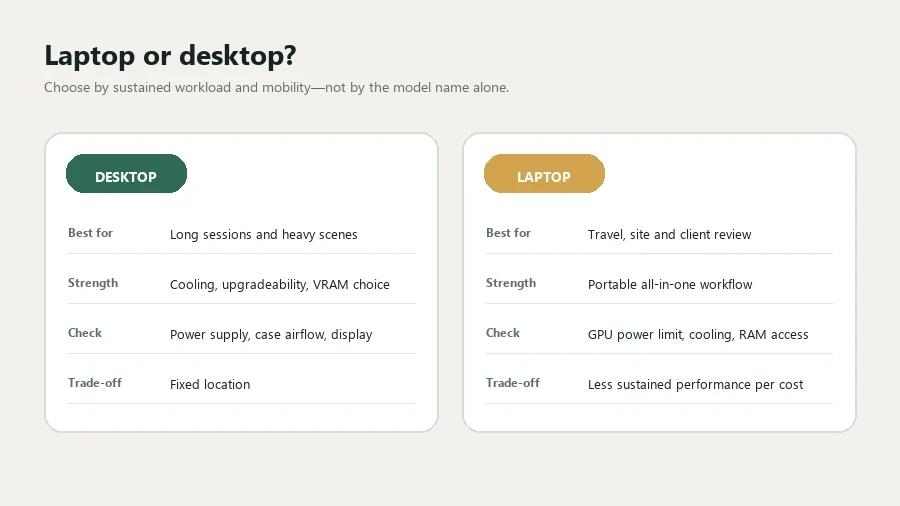
A supported laptop can run D5, but identical GPU names do not guarantee identical performance. Laptop GPUs operate within different power and thermal limits, and sustained rendering exposes cooling quality. Check the GPU’s dedicated VRAM, maximum graphics power, cooling design, memory upgradeability and whether performance falls when the machine runs for twenty minutes—not only a short benchmark.
For mobile review and small projects, a laptop with 8–12GB VRAM and 32GB RAM can be practical. For daily professional production, prefer 12–16GB VRAM, 64GB upgradeable RAM, a 1–2TB NVMe SSD and a high-power cooling design. A desktop remains the stronger value for sustained performance, 24GB-plus VRAM, quieter cooling and future GPU/storage upgrades.
Three workstation specifications by workload
| Workload | GPU / VRAM target | CPU | RAM | Storage |
|---|---|---|---|---|
| Small interiors, houses, learning, 2K stills | Modern supported DXR GPU, 8–12GB | Recent 6–8 fast cores | 32GB | 1TB NVMe |
| Professional interiors, villas, campus work, 4K stills | Strong supported GPU, preferably 16GB | 8–12 fast cores | 64GB | 2TB NVMe |
| Dense landscape/city scenes, long animation, heavy multitasking | High-end supported GPU, 24–32GB | 12–16 fast cores | 64–128GB | 2–4TB NVMe plus backup |
These targets are planning bands, not guarantees. A well-instanced 20-million-polygon scene may behave better than a smaller file filled with unique geometry and oversized textures. Use D5’s hardware check and benchmark, then validate with your own production scene.
How to validate a computer before buying or upgrading
- Define the test scene. Use a representative project with final vegetation, lights, textures and linked model—not a vendor demo.
- Record the workflow. Note viewport resolution, ray-tracing settings, output resolution, animation duration and companion applications.
- Measure capacity. Watch dedicated VRAM and system RAM from launch through the heaviest camera and export.
- Measure sustained behavior. Run at least 20–30 minutes to reveal laptop throttling, noise or power limitations.
- Test recovery. Save, reopen, relink and export the project. A fast viewport does not prove a stable pipeline.
- Add headroom. Purchase for the next project class, not exactly the current peak.
Frequently asked questions
Can D5 Render run on macOS?
D5’s current support guidance says D5 Render supports Windows and does not yet support macOS. A virtual machine does not change the discrete-DXR-GPU requirement.
Is 8GB of VRAM enough?
It can be enough for controlled small scenes and learning, but it offers limited headroom for dense vegetation, 4K textures and larger outputs. For a new professional machine, 12GB is safer and 16GB is the balanced target.
Does D5 combine two graphics cards?
No. D5 states that it primarily uses dedicated GPU memory and does not support multi-GPU parallel/interconnected operation. Choose one stronger supported GPU.
Should I buy more CPU cores or a faster GPU?
For D5 rendering, prioritize the GPU after meeting a sensible modern CPU baseline. Add CPU cores when Revit, 3ds Max, CPU rendering or video encoding materially contributes to the same workflow.
What should I read next?
Follow the D5 Render 3.1 Interactive Presentation tutorial, use our GPU-memory troubleshooting workflow, or compare the wider system balance in the 2026 architectural rendering workstation guide.
- D5 Render User Manual — System Requirements for D5 Render
- D5 Render User Manual — Does the CPU have a big impact on D5?
- D5 Render User Manual — Download and installation
- D5 Render — Windows 10 vs 11
- D5 Render — 2026 GPU for Rendering Guide
- D5 Support — Hardware detection and compatibility troubleshooting
Continue Exploring